30. PLC Backups, Documentation, and Version Control ( 30 of 35 )
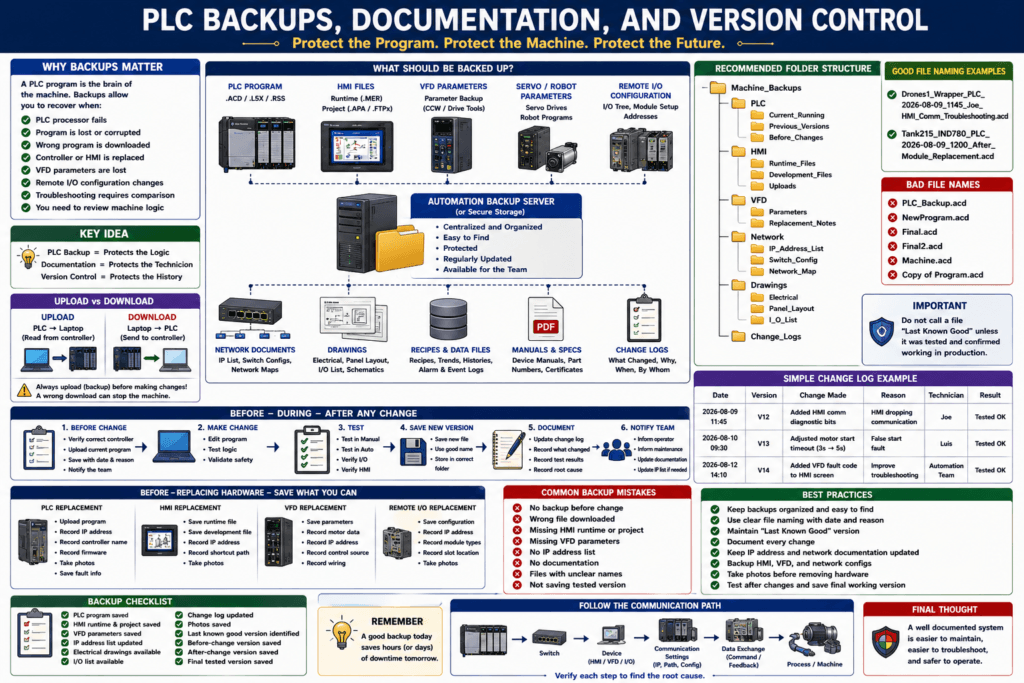
In industrial automation, a PLC program is not just a file.
It is the brain of the machine.
If the PLC program is lost, outdated, modified incorrectly, or not documented, troubleshooting becomes much harder.
A machine may have perfect wiring and good hardware, but if nobody has the correct backup, the recovery process can become slow and risky.
A simple way to understand it:
A PLC backup protects the machine logic.
Documentation protects the technician.
Version control protects the history of changes.
For an Automation Technician, knowing how to manage PLC backups is just as important as knowing how to troubleshoot inputs and outputs.
Why PLC Backups Matter
A PLC backup allows the team to recover the machine if something fails.
Backups are important when:
PLC processor fails
PLC memory is lost
Program is accidentally modified
Wrong program is downloaded
Controller is replaced
PanelView or HMI is replaced
VFD parameters are lost
Remote I/O configuration changes
Network settings are lost
Machine logic needs to be reviewed
Troubleshooting requires comparison with previous version
Without a backup, the team may not know what program was actually running in production.
That can create long downtime.
What Should Be Backed Up?
A complete automation backup is more than only the PLC file.
A good backup package should include:
PLC program
HMI runtime/application
VFD parameters
Servo drive parameters
Robot program if applicable
Remote I/O configuration
Network switch configuration
IP address list
Electrical drawings
Panel layout drawings
Device manuals
Calibration records
Recipe files
Alarm list
Tag list
Change notes
A machine is a system.
The PLC is only one part of that system.
PLC Program Backup
The PLC backup is usually the most important file.
Examples:
Studio 5000 / RSLogix 5000: .ACD
RSLogix 500: .RSS
Connected Components Workbench: .CCWARC or project file
Siemens TIA Portal: project archive
Omron, Mitsubishi, Schneider: platform-specific project files
For Allen-Bradley systems, a backup may include:
Controller logic
Tags
Routines
Tasks
I/O tree
Communication modules
Module configuration
Descriptions and comments
Controller properties
Produced / Consumed tag setup
MSG instruction paths
The backup should match the actual running machine.
Upload vs Download
This is one of the most important terms for technicians.
Upload
Upload means:
PLC → LaptopYou are reading the program from the controller into your computer.
Example:
Upload from PLC to save a backup.Download
Download means:
Laptop → PLCYou are sending the program from your computer into the controller.
Example:
Download updated program to PLC.Important:
Upload = get program from PLC.
Download = send program to PLC.
A wrong download can stop a machine or overwrite the running program.
Why Upload Before Making Changes?
Before making any PLC change, upload or save a backup of the current running program.
This gives you a recovery point.
Good practice:
1. Go online with PLC.
2. Verify correct controller.
3. Upload current program if needed.
4. Save file with date/time.
5. Make changes.
6. Test changes.
7. Save new version.
8. Document what changed.
This protects you if the change does not work as expected.
File Naming Best Practice
Bad file names create confusion.
Bad examples:
PLC_Backup.acd
NewProgram.acd
Final.acd
Final2.acd
Machine.acd
Copy of Program.acd
Better file name:
LineName_MachineName_PLC_YYYY-MM-DD_HHMM_TechName_Reason.acdExample:
Drones1_Wrapper_PLC_2026-08-09_1145_Joe_HMI_Comm_Troubleshooting.acdAnother example:
Tank215_IND780_PLC_2026-08-09_1200_After_Module_Replacement.acdGood file names make it easier to know which file is correct.
Recommended Folder Structure
A clean folder structure helps the whole team.
Example:
Machine_Backups
│
├── PLC
│   ├── Current_Running
│   ├── Previous_Versions
│   └── Before_Changes
│
├── HMI
│   ├── Runtime_Files
│   ├── Development_Files
│   └── Uploads
│
├── VFD
│   ├── Parameters
│   └── Replacement_Notes
│
├── Network
│   ├── IP_Address_List
│   ├── Switch_Config
│   └── Network_Map
│
├── Drawings
│   ├── Electrical
│   ├── Panel_Layout
│   └── I_O_List
│
└── Change_Logs
The goal is simple:
Anyone on the automation team should be able to find the correct file quickly.What Is Version Control?
Version control means keeping track of program changes over time.
It answers these questions:
What changed?
Who changed it?
When was it changed?
Why was it changed?
What machine problem did it address?
Was the change tested?
Can we go back to the previous version?
Without version history, troubleshooting becomes harder.
Example problem:
Machine started faulting after a program change.
No one knows what changed.
No previous backup is available.
That is a bad situation.
Simple Version Control for Technicians
Even without advanced software, you can use a basic change log.
Example:
| Date | Machine | File Version | Change Made | Reason | Technician |
|---|---|---|---|---|---|
| 2026-08-09 | Wrapper 1 | V12 | Added HMI comm diagnostic bit | Troubleshooting HMI drop | Joe |
| 2026-08-10 | Wrapper 1 | V13 | Adjusted motor start timeout | False start fault | Luis |
| 2026-08-12 | Wrapper 1 | V14 | Added VFD fault code display | Improve troubleshooting | Automation Team |
This simple table can save hours later.
Current Running Version
Every machine should have one clearly identified current running version.
Example:
Current running PLC file:
Drones1_Wrapper_PLC_2026-08-09_1145_V14.acd
Avoid situations where nobody knows which file is online.
A good backup folder should have:
Current running version
Last known good version
Before change version
After change version
Change notes
Last Known Good Backup
A Last Known Good backup is the last version that was confirmed working correctly on the machine.
This is extremely valuable.
Example:
Last_Known_Good:
Machine was running production with no active issues.
Backup saved after validation.
If a new change causes a problem, the team can compare against the last known good version.
Important:
Do not call a file “Last Known Good” unless it was actually tested and confirmed.PLC Backup vs PLC Upload
A PLC upload may not always include everything you expect.
Depending on the platform and project:
Comments may not be stored in the controller
Descriptions may be missing
HMI files may not be included
VFD parameters may not be included
Add-On Instructions may need source files
User-defined documentation may be incomplete
That is why the best backup is usually the original project file plus a verified upload when needed.
A controller upload can help recover logic, but the full project backup is often better for documentation.
HMI Backups
The HMI is also critical.
HMI backup files may include:
Screens
Buttons
Indicators
Alarm messages
Trends
Recipes
Security users
Communication shortcuts
PLC tag connections
Runtime file
Development file
For Allen-Bradley PanelView / FactoryTalk View ME systems, the team may deal with files such as:
.MER runtime file
.APA archive file
FactoryTalk View Studio project
Important:
A runtime file may run the HMI, but it may not always be as useful as the full development project.Keep both when possible.
HMI Communication Shortcut Backup
The HMI communication shortcut is very important.
If the HMI cannot find the PLC, the machine may show:
PLC Communication Error
Check PLC Communication
Cannot connect to controller
Tag not found
Shortcut failed
Document:
PLC IP address
PLC controller name
FactoryTalk Linx shortcut name
Runtime target path
Design/local path
HMI IP address
Ethernet switch port
This is especially important after replacing a PLC or HMI.
VFD Parameter Backups
VFD parameters should also be backed up.
A VFD replacement is much easier if you have:
Drive catalog number
Firmware if relevant
Motor nameplate data
Control mode
Start/stop source
Speed reference source
Acceleration time
Deceleration time
Minimum speed
Maximum speed
Fault configuration
Communication adapter settings
IP address
Input/output terminal configuration
For PowerFlex drives, useful backup tools may include:
Connected Components Workbench
Studio 5000 Add-On Profile
HIM CopyCat
DriveExecutive / DriveTools in older systems
Parameter export
Manual parameter list
The goal:
If the drive fails, you can configure the replacement quickly and correctly.Network Documentation
Modern PLC systems depend heavily on Ethernet.
Document:
Device name
IP address
Subnet mask
Gateway
MAC address if useful
Panel location
Switch name
Switch port
Cable number
Device type
Firmware version if important
Example:
| Device | IP Address | Location | Switch Port | Notes |
|---|---|---|---|---|
| PLC | 10.0.113.159 | Wrapper Panel | Cuarto 1 / Port 3 | Main controller |
| HMI | 10.0.113.xxx | Wrapper Door | Cuarto 1 / Port 4 | PanelView |
| VFD 1 | 10.0.113.xxx | Wrapper Panel | Port 5 | Conveyor |
| Remote I/O | 10.0.113.xxx | Machine Frame | Port 6 | POINT I/O |
This makes communication troubleshooting much faster.
Electrical Drawings and I/O List
PLC backups are not enough if the electrical drawings are wrong.
Good documentation includes:
PLC slot layout
I/O address list
Field device tag names
Wire numbers
Terminal blocks
Fuses
Power supply circuits
Network connections
Safety circuits
Panel layout
VFD wiring
Remote I/O wiring
When troubleshooting, a technician should be able to answer:
What input point is this sensor wired to?
What output controls this solenoid?
Where is the fuse?
Where is the common?
What terminal block does this cable land on?
What drawing page shows this device?
If drawings are outdated, document the difference and update them through the correct process.
Backup After Hardware Replacement
Always make or update backups after replacing:
PLC processor
HMI
VFD
Servo drive
Remote I/O adapter
Analog module
Communication module
Network switch
Safety relay / safety controller
Robot controller
After replacement, document:
Old part number
New part number
Firmware/version
IP address
Configuration loaded
Backup used
Test result
Remaining issues
This protects the team if a similar replacement happens later.
Backup Before Hardware Replacement
Before replacing a device, save what you can.
Example:
Before replacing a VFD:
Upload parameters if possible.
Record IP address.
Record motor nameplate.
Take photos of wiring.
Save fault history if useful.
Example:
Before replacing a PLC:
Upload program if possible.
Verify current online file.
Record controller name and IP.
Save fault information.
Take photos of module layout.
Sometimes the device is dead and cannot be uploaded.
But if it is still communicating, save the data first.
Photos Are Documentation
Photos are very useful during troubleshooting.
Take clear photos of:
PLC rack
Module slot order
Wiring before removal
VFD parameters screen
HMI communication settings
Network switch connections
Terminal blocks
Wire labels
Fault codes
Device nameplates
Motor nameplates
Sensor part numbers
A good photo can prevent wiring mistakes during replacement.
Important:
Photos do not replace drawings, but they help during real plant troubleshooting.Change Notes
Every PLC change should have notes.
Good change note:
Added 3-second valve open feedback timeout to prevent sequence from waiting indefinitely when valve feedback is missing.
Tested in Manual and Auto. Fault displays correctly on HMI.
Bad change note:
Fixed logic.A good change note helps the next technician understand why something was modified.
Online Edits
Online edits are powerful but must be controlled.
Before an online edit:
Verify correct PLC
Understand the logic
Save backup
Notify team
Know how to cancel or accept edits
Understand machine risk
Check if equipment can move
After an online edit:
Test the change
Save new backup
Document what changed
Tell the team
Update drawings or notes if needed
Never make random online edits just to “try something.”
Program Compare
A program compare helps identify differences between two PLC files.
Useful when:
You are not sure what changed
Machine behavior changed after download
You found multiple backup files
You need to compare current program to last known good
You want to verify a vendor modification
A compare can reveal:
Changed rungs
Changed tags
Changed timers
Changed setpoints
Changed I/O configuration
Changed comments
Added or deleted logic
This is very useful in troubleshooting.
Common Backup Mistakes
1. No Backup Before Change
A change is made, but no previous copy exists.
Problem:
No easy way to return to the previous logic.2. Wrong File Downloaded
A file from another machine or older version is downloaded.
Result:
Machine may not operate correctly.
I/O mapping may be wrong.
HMI tags may not match.
3. Backup Has No Comments
The logic uploads, but descriptions are missing.
Result:
Program becomes much harder to understand.4. HMI Not Backed Up
PLC program is saved, but HMI runtime and development files are missing.
Result:
HMI replacement becomes difficult.5. VFD Parameters Not Saved
Drive fails, replacement is installed, but no parameter backup exists.
Result:
Motor may not run correctly.
Control source may be wrong.
Speed reference may be wrong.
Fault behavior may be different.
6. No IP Address List
Device fails, but nobody knows its IP address.
Result:
Communication recovery takes longer.Practical Example: PLC Replacement
Situation
A PLC processor fails and must be replaced.
Good Recovery Path
1. Identify exact controller model.
2. Locate current running backup.
3. Verify firmware compatibility.
4. Record old PLC IP address if possible.
5. Install replacement controller.
6. Set IP address.
7. Download correct PLC program.
8. Verify controller mode.
9. Check I/O tree status.
10. Verify HMI communication.
11. Test inputs and outputs.
12. Save final backup after successful startup.
Without the correct backup, this process becomes much harder.
Practical Example: HMI Replacement
Situation
PanelView fails and must be replaced.
Good Recovery Path
1. Identify HMI model and screen size.
2. Locate runtime file and development archive.
3. Record old HMI IP address.
4. Install replacement HMI.
5. Set IP address.
6. Download runtime file.
7. Verify FactoryTalk Linx shortcut.
8. Test PLC communication.
9. Test buttons, alarms, trends, and setpoints.
10. Document replacement.
A missing runtime file can turn a simple replacement into a long downtime event.
Practical Example: VFD Replacement
Situation
PowerFlex drive fails and must be replaced.
Good Recovery Path
1. Identify drive catalog number and horsepower.
2. Record motor nameplate data.
3. Locate drive parameter backup.
4. Install replacement drive.
5. Load parameters.
6. Set IP address if networked.
7. Verify control source.
8. Verify speed reference source.
9. Test direction.
10. Test start/stop.
11. Verify feedback to PLC.
12. Save final parameter backup.
A drive can power up and still not work correctly if the parameters are wrong.
What to Save After Troubleshooting
After solving a problem, save:
Final PLC program
Final HMI runtime if changed
Final VFD parameters if changed
Photos of important findings
Fault code information
Root cause notes
Corrective action
Preventive action
Updated IP list if needed
Updated drawings if wiring changed
This turns troubleshooting into future knowledge.
Automation Technician Notes
For an Automation Technician, backups are part of professional work.
When you touch a PLC system, ask:
Do we have the current backup?
Is this the correct machine?
Is this the correct version?
Was the file saved before the change?
Did we document what changed?
Can the next technician understand what happened?
A good backup habit protects production, protects the technician, and protects the automation team.
Backup Checklist
PLC program saved
HMI project/runtime saved
VFD parameters saved
Servo/robot parameters saved if applicable
IP address list updated
Electrical drawings available
I/O list available
Panel photos saved
Change log updated
Last known good version identified
Before-change version saved
After-change version saved
Final tested version saved
Team notified
Recommended Change Log Format
Date:
Time:
Machine:
PLC/HMI/Drive:
Original file name:
New file name:
Reason for change:
Description of change:
Testing performed:
Result:
Technician:
Approval / reviewed by:
Notes:
Example:
Date: 2026-08-09
Machine: Wrapper Drones 1
Reason: HMI communication troubleshooting
Change: Added diagnostic status bits for PLC communication and module status.
Testing: Verified HMI status screen updates correctly.
Result: Passed
Technician: Joe
Key Terms
| Term | Meaning |
|---|---|
| Backup | Saved copy of program or configuration |
| Upload | Transfer from PLC/device to laptop |
| Download | Transfer from laptop to PLC/device |
| Version Control | Method for tracking changes over time |
| Current Running Version | File confirmed to match machine operation |
| Last Known Good | Backup confirmed working correctly |
| Change Log | Record of modifications and reasons |
| HMI Runtime | File running on the HMI terminal |
| VFD Parameters | Configuration values inside the drive |
| IP Address List | Network documentation for devices |
| Program Compare | Tool/process to identify differences between files |
| Online Edit | Program change made while connected to running PLC |
| Archive | Packaged backup of a project |
Final Thoughts
PLC backups, documentation, and version control are essential for reliable industrial automation.
A good technician does not only fix the machine.
A good technician protects the future recovery of the machine.
The professional mindset is:
Backup before changes.
Document what changed.
Save the final tested version.
Keep the team informed.
If a PLC, HMI, VFD, or network device fails, a good backup can turn a long downtime event into a controlled recovery.
The best troubleshooting is not only solving today’s problem.
It is leaving the system easier to troubleshoot tomorrow.