12. MOV Instruction Explained Simply in Studio 5000
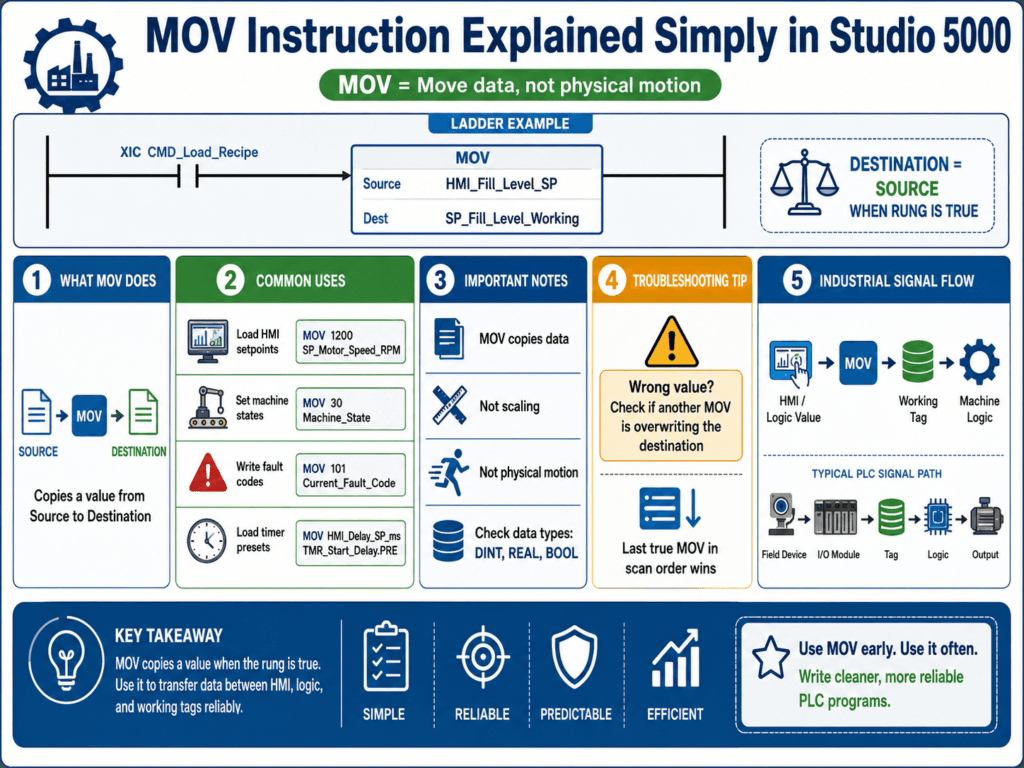
If you are learning Studio 5000, one of the first instructions you will see everywhere is the MOV instruction. At first glance it looks almost too simple, but in real industrial logic, MOV is one of the most useful instructions you can understand.
Many technicians see the name MOV and think it means “motion.” It does not. In Studio 5000, MOV means Move. It simply copies a value from a source to a destination.
That sounds basic, but this instruction is used all the time for machine states, setpoints, fault codes, recipe values, analog handling, timer presets, and many other everyday automation tasks.
In this post, we will break MOV down in a simple and practical way.
What the MOV Instruction Does
The MOV instruction takes the value from the Source and places it into the Destination.
Simple idea:
MOV
Source:      100
Destination: Motor_Speed_Command
If the rung is true, the destination becomes 100.
You can think of it like this:
Destination = SourceThat is the heart of MOV.
It does not scale.
It does not compare.
It does not count.
It does not latch by itself.
It just copies a value.
Why MOV Matters in Real Machines
In industrial systems, we constantly need to move values from one place to another.
For example:
- Move an HMI setpoint into a working tag
- Move a machine state number into a status tag
- Move a recipe value into a production parameter
- Move an analog raw value into a buffer tag
- Move a fault code into a “current fault” register
- Move a timer preset into a timer
.PRE - Move a constant value into a command tag
So even though MOV is simple, it is used everywhere.
Basic MOV Example
Let’s say an operator presses a pushbutton to load a motor speed setpoint.
XIC    DI_Load_Speed_PB
MOV    1200    SP_Motor_Speed_RPM
What happens?
If DI_Load_Speed_PB is true, then SP_Motor_Speed_RPM becomes 1200.
That is all.
MOV with One Tag to Another Tag
You can also move the value from one tag into another tag.
XIC    CMD_Load_Recipe
MOV    HMI_Fill_Level_SP    SP_Fill_Level_Working
What happens?
When CMD_Load_Recipe is true, the value stored in HMI_Fill_Level_SP is copied into SP_Fill_Level_Working.
This is common when you want to take an operator-entered value and load it into the logic.
Practical Industrial Examples
1. Loading a Setpoint from the HMI
A common use of MOV is transferring an operator setpoint into a working value.
XIC    CMD_Load_Temperature_SP
MOV    HMI_Temperature_SP    SP_Temperature_Working
Real example:
The operator enters 75.0°C on the HMI. When the load command becomes true, that value is moved into the working setpoint used by the machine.
This is useful because the machine may use the working setpoint, while the HMI tag remains the user-entry tag.
2. Setting a Machine State
MOV is often used in machine state logic.
XIC    Step_Fill_Complete
MOV    30    Machine_State
Maybe your state definitions are:
0   = Idle
10  = Start
20  = Filling
30  = Mixing
40  = Discharge
50  = Fault
If Step_Fill_Complete becomes true, Machine_State becomes 30, which means the machine now enters the mixing step.
This is a very common and clean use of MOV.
3. Writing a Fault Code
MOV is useful for fault tracking.
XIC    FLT_Motor_Overload
MOV    101    Current_Fault_Code
You could define:
101 = Motor Overload
102 = Low Air Pressure
103 = Conveyor Jam
104 = Valve Failed to Open
This makes troubleshooting easier because the HMI or maintenance screen can display the active fault code.
4. Loading a Timer Preset
You can use MOV to change a timer preset.
XIC    CMD_Load_Delay
MOV    HMI_Delay_SP_ms    TMR_Start_Delay.PRE
If the HMI setpoint is 5000, then the timer preset becomes 5000 ms.
That means the timer is now set for 5 seconds.
This is a practical method for adjustable delays.
5. Recipe Loading
In production equipment, MOV is often used to load recipe data.
XIC    CMD_Load_Recipe_1
MOV    1500    SP_Fill_Weight
MOV    250     SP_Agitator_Speed
MOV    30      SP_Mix_Time_sec
When Recipe 1 is selected, these values are loaded into the machine.
This is simple, readable, and very common in batch systems.
MOV Is Not Scaling
This is an important point.
Many beginners confuse MOV with scaling.
If you do this:
MOV AI_Level_Raw Level_Percentyou are not scaling the value. You are only copying it.
If AI_Level_Raw is 16384, then Level_Percent will also become 16384.
If you want 0–100%, then you need scaling logic, not just MOV.
So remember:
- MOV = copy
- Scaling = convert
MOV Is Not Physical Motion
Another common confusion comes from the word “move.”
In Studio 5000, MOV has nothing to do with:
- servo motion
- axis positioning
- motor movement
- machine movement
It only moves data, not machinery.
Data Types Matter
MOV works best when you understand the data types involved.
Examples:
BOOLINTDINTREAL
If you move a value between different data types, the result may still work, but you should be careful.
Example:
MOV 25.7 Tank_LevelIf Tank_Level is a DINT, the decimal portion may not be stored the way you expect.
A better design is to keep your data types consistent.
Good practice:
- Use
REALfor analog values with decimals - Use
DINTfor state numbers, counts, and integer values - Use
BOOLfor true/false signals
Technician Troubleshooting Perspective
When a value is wrong in the PLC, MOV is one of the first instructions you should check.
Why?
Because sometimes the problem is not the sensor, not the HMI, and not the output. Sometimes the value is simply being overwritten by a MOV instruction somewhere else in the logic.
Example problem:
The operator enters a speed setpoint of 1800, but the motor always runs at 1200.
You go online and discover this rung:
XIC    Auto_Mode
MOV    1200    SP_Motor_Speed_RPM
So every time Auto Mode is true, the setpoint gets forced to 1200.
That means the HMI entry is not the issue. The MOV instruction is overwriting the value.
Troubleshooting questions:
- Is the rung with the MOV true?
- What is the source value?
- What tag is being written to?
- Is another rung writing to the same destination?
- Is the destination being overwritten later in the scan?
This is where understanding scan order becomes very important.
Programmer Perspective
From a programmer’s point of view, MOV is useful because it is:
- simple
- readable
- fast to troubleshoot
- great for state control
- useful for recipes and setpoints
- cleaner than using complicated logic for simple assignments
But it must be used carefully.
Good programming practices:
- Use meaningful destination tags
- Avoid writing to the same destination from many places
- Comment your MOV instructions
- Keep state values documented
- Use MOV intentionally, not everywhere without structure
For example, this is much better:
XIC    Step_Valve_Open_Done
MOV    40    Machine_State
than having random values moved all over the project with no explanation.
A Very Common Mistake: Multiple MOVs to the Same Tag
One of the most common problems is having several rungs write to the same destination.
Example:
XIC    Auto_Mode
MOV    1000    SP_Conveyor_Speed
XIC Manual_Mode
MOV 500 SP_Conveyor_SpeedXIC Maintenance_Mode
MOV 200 SP_Conveyor_SpeedIf more than one condition is true, the final value will depend on scan order. The PLC scans from top to bottom, so the last true MOV writing to that destination wins.
That can create confusion if the logic is not structured well.
Better approach:
Make sure only one mode is active, or use clearer logic structure.
MOV with Timer and Counter Members
MOV can also work with structure members, such as timer presets.
Example:
MOV 3000 TMR_Valve_Open_Timeout.PREThis sets the timer preset to 3000 ms.
You may also see MOV used with counters or machine control structures, depending on the project.
That is why understanding tags and members is so important in Studio 5000.
Example: MOV in a Small Motor Control Sequence
Let’s say we want a simple sequence:
- Idle = 0
- Start Requested = 10
- Running = 20
- Fault = 30
Example logic:
XIC    DI_Start_PB
MOV    10    Machine_State
XIC FB_Motor_Running
MOV 20 Machine_StateXIC FLT_Motor_OL
MOV 30 Machine_StateWhat is happening?
- Pressing Start moves the machine to state 10
- Motor running feedback moves it to state 20
- Overload fault moves it to state 30
This is a clean use of MOV for sequence control.
Example Tag Names That Fit Good Practice
Here are some clean tag examples:
HMI_Speed_SP
SP_Motor_Speed_Working
Machine_State
Current_Fault_Code
TMR_Start_Delay
CMD_Load_Recipe
FLT_Pump_Overload
FB_Valve_Open
These names make MOV instructions easier to understand and troubleshoot.
Common Mistakes with MOV
Here are some common MOV mistakes technicians and new programmers should watch for:
1. Thinking MOV means physical motion
It does not. It only moves data.
2. Using MOV when scaling is needed
MOV copies the number exactly. It does not convert engineering units.
3. Writing to the same tag from many places
This creates confusing logic and hard troubleshooting.
4. Ignoring data types
Moving values between mismatched types can create bad results.
5. Forgetting scan order
The PLC scans top to bottom. A later MOV can overwrite an earlier one.
6. Not commenting the purpose
If a MOV sets a machine state or loads a recipe, explain it clearly.
Simple Rule to Remember
If you remember only one thing from this post, remember this:
MOV copies a value from Source to Destination when the rung is true.That is the whole idea.
Final Thoughts
The MOV instruction is one of the simplest instructions in Studio 5000, but it is also one of the most useful. Once you understand it, you will start seeing it everywhere in real PLC projects.
For technicians, MOV helps explain why a value changes.
For programmers, MOV provides a clean way to assign values in logic.
When used correctly, MOV is excellent for:
- loading setpoints
- setting machine states
- writing fault codes
- loading recipe values
- assigning timer presets
- buffering important data
And when troubleshooting, always remember to check whether a MOV instruction is overwriting the value you expect.
A lot of “mystery problems” in PLC logic are simply a value being moved from the wrong place at the wrong time.