11. Online Edits in Studio 5000
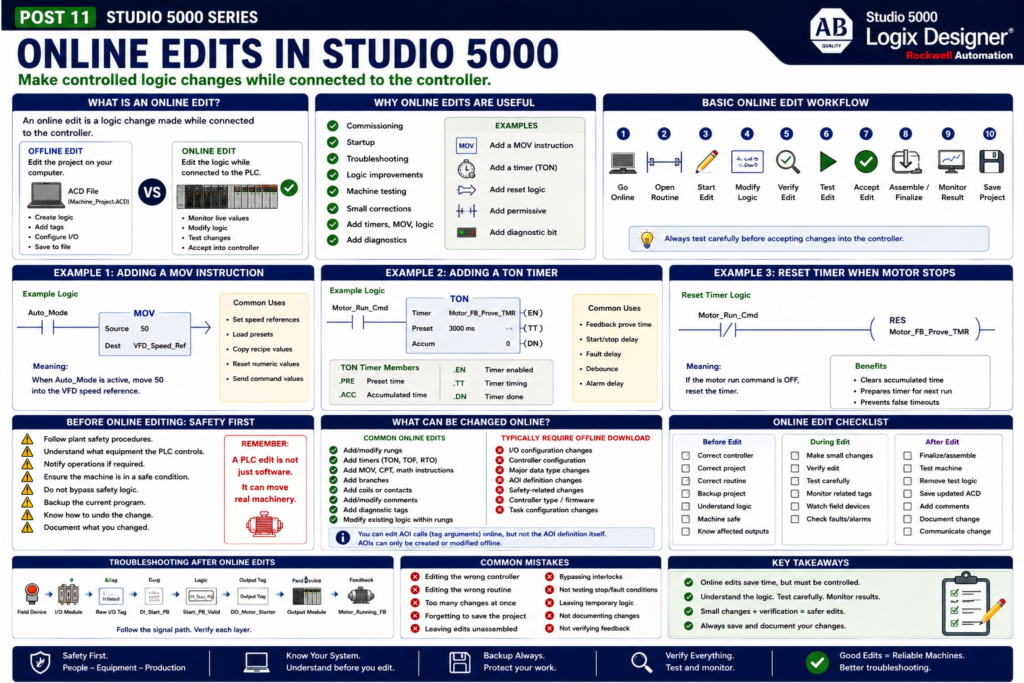
Online editing is one of the most powerful features in Studio 5000 Logix Designer.
It allows a PLC programmer or automation technician to modify certain ladder logic while connected to the controller, without doing a full offline download.
This is very useful during:
Commissioning
Startup
Troubleshooting
Logic improvements
Machine testing
Small corrections
Adding timers
Adding MOV instructions
Adding diagnostic bits
But online editing must be done carefully because the PLC may be controlling real equipment.
A small logic change can affect motors, valves, conveyors, solenoids, VFDs, alarms, and machine sequences.
Rockwell’s Studio 5000 lab manual includes a section called Adding Logic and Tags Online. In that lab, the user explores online editing by adding a MOV instruction, adding a timer, and adding ladder logic to reset the timer when the motor is stopped.
What Is an Online Edit?
An online edit is a logic change made while Studio 5000 is connected to the controller.
Simple definition:
Online Edit = Modifying logic while connected to the running controllerThis is different from offline editing.
Offline Edit
You modify the ACD project file on your computer.
The controller is not changed until you download.
Online Edit
You modify logic while connected to the controller.
The change can be tested and accepted into the running project.
In simple terms:
Offline = edit the file

Online = edit the live controller project
Why Online Edits Are Useful
Online edits are useful because they allow you to make controlled changes without stopping everything for a full download.
Common examples:
Add a timer for delay logic
Add a MOV instruction for a value transfer
Add a diagnostic bit
Add a permissive condition
Add a fault latch
Add a reset rung
Modify a rung comment
Add a branch
Add a temporary troubleshooting tag
During commissioning, online edits are very common because logic often needs small adjustments after real-world testing.
For example:
A photoeye needs a debounce timer.
A motor feedback timer needs more time.
A fault reset needs to clear an additional bit.
A sequence needs an extra permissive.
A diagnostic bit is needed for HMI troubleshooting.
Online Editing Is Powerful but Risky
Online edits affect a real controller.
That controller may be running real equipment.
Before making an online edit, ask:
What equipment does this logic control?
Is the machine running?
Can this change cause motion?
Can this change energize an output?
Can this change stop production?
Can this bypass a permissive or interlock?
Do I have permission to make this change?
A professional technician treats online edits with respect.
Online editing is not the place to guess.
Safety First
Before editing online:
Follow plant safety procedures.
Notify operations or production if required.
Understand the controlled equipment.
Make sure the machine is in a safe condition.
Do not bypass safety logic.
Do not force outputs casually.
Backup the current program.
Know how to undo the change.
Document what you changed.
Remember:
A PLC edit is not just software.
It can move real machinery.
Basic Online Edit Workflow
A typical online edit workflow looks like this:
1. Go online with the controller.
2. Open the routine that needs to be changed.
3. Start an online edit on the rung.
4. Modify or add logic.
5. Verify the edit.
6. Test the edit.
7. Accept the edit.
8. Assemble/finalize the edit.
9. Monitor the result.
10. Save the updated ACD file.
Different versions of Studio 5000 may display the edit workflow slightly differently, but the general concept is the same:
Edit → Verify → Test → Accept/Assemble → SaveImportant: Online Does Not Mean Unlimited Editing
Not everything can be changed online.
Some changes may require offline editing and a download.
Examples that may require offline work include:
Major controller configuration changes
Some I/O configuration changes
Certain data type changes
Some AOI definition changes
Certain safety-related changes
Controller type or firmware changes
For Add-On Instructions, Rockwell’s AOI manual explains that AOIs can only be created or modified offline. It also states that you can add, delete, or modify tag arguments in calls to AOIs while editing online, but you cannot edit arguments inside the AOI while online.
That distinction is important:
You may edit the AOI call in ladder online.

But changing the AOI definition itself normally requires offline work.
Example 1 — Adding a MOV Instruction Online
The Studio 5000 lab manual uses a MOV instruction as part of the online editing exercise.
A MOV instruction copies a value from a source into a destination.
Simple example:
MOV
Source: 100
Dest: Motor_Speed_Command
Meaning:
Move the value 100 into Motor_Speed_Command.MOV instructions are commonly used for:
Setting speed references
Setting machine states
Loading presets
Copying recipe values
Resetting numeric values
Sending command values
MOV Example in a Machine
Example:
Auto_Mode        MOV
----] [---------- Source: 50
                 Dest: VFD_Speed_Ref
Meaning:
When Auto_Mode is active,
move 50 into the VFD speed reference.
From a technician point of view, MOV is easy to understand:
Take this value and put it there.Example 2 — Adding a Timer Online
The lab manual also adds a timer online. It shows adding a Timer On Delay (TON) instruction from the Timer/Counter tab. The manual notes that Studio 5000 lets you string output instructions together in series and that branches are not required in that example.
A TON timer is commonly used for:
Start delay
Stop delay
Feedback prove time
Fault delay
Debounce logic
Alarm delay
Sequence delay
Example:
Motor_Run_Cmd        TON
----] [-------------- Timer: Motor_FB_Prove_TMR
                     Preset: 3000 ms
Meaning:
When the motor run command is ON,
start timing.
After 3 seconds, the timer done bit turns ON.
Timer Members in Studio 5000
A timer tag has members:
Timer.PRE
Timer.ACC
Timer.EN
Timer.TT
Timer.DN
Simple meaning:
| Timer Member | Meaning |
|---|---|
.PRE | Preset time |
.ACC | Accumulated time |
.EN | Timer enabled |
.TT | Timer timing |
.DN | Timer done |
Example:
Motor_FB_Prove_TMR.DNThis means the timer has finished timing.
Example 3 — Resetting a Timer When Motor Stops
The lab manual states that the online editing section includes adding ladder logic to reset the timer when the motor is stopped.
This is a very practical concept.
Example:
Motor_Run_Cmd
----]/[----------------( RES Motor_Run_Timer )
Meaning:
If the motor run command is OFF,
reset the motor run timer.
This prevents the timer accumulated value from staying active when the motor is stopped.
Timer reset logic is common for:
Runtime tracking
Fault timers
Sequence timers
Alarm delays
Debounce timers
Online Edit Status: What to Watch
When performing online edits, Studio 5000 may show different rung states.
You may see indicators for:
Edits in progress
Accepted edits
Test edits
Unassembled edits
Verified edits
Pending changes
The exact labels depend on the version and workflow, but the idea is:
Your edit goes through stages before it becomes finalized.Do not walk away with unfinished edits.
Always confirm the final state of the routine.
Green Power Rails
When you are online and the routine is executing, Studio 5000 shows green power rails.
The lab manual explains that when the user opens the ladder editor online, green power rails on both sides of the ladder indicate that the routine is online and executing.
This is useful for technicians.
Green rails help confirm:
You are online.
The routine is executing.
You are monitoring live logic.
If you are offline, you will not see live rung execution the same way.
Online Edit Best Practices
1. Backup First
Before making changes, save or obtain a backup.
A backup protects you if the edit causes problems.
Before edit:
Save current ACD file.

After edit:
Save updated ACD file with revision note.
2. Understand the Logic First
Do not edit a rung you do not understand.
Before changing logic:
Cross reference the tag.
Check what outputs are affected.
Check if the tag is used by HMI or SCADA.
Check if the logic is part of a sequence.
Check if the logic affects safety or interlocks.
3. Make Small Changes
Online edits should be controlled.
Better:
Add one permissive.
Test it.
Then continue.
Avoid making many changes at once without testing.
4. Avoid Bypassing Interlocks
Never bypass interlocks just to “make it run.”
Interlocks often protect equipment, product, and people.
5. Watch the Machine Behavior
After accepting the edit, monitor:
Rung condition
Output command
Field device response
Feedback signal
Faults and alarms
HMI status
6. Document the Edit
Add rung comments and tag descriptions.
Also update external documentation if required.
Common Mistakes with Online Edits
1. Editing the Wrong Controller
Always verify the communication path.
A wrong online edit can affect the wrong machine.
2. Editing the Wrong Routine
Large projects may have many similar routines.
Check the program and routine name carefully.
3. Leaving Test Edits Unfinished
Unassembled or unfinished edits can create confusion.
Always finalize or cancel edits properly.
4. Not Saving the Updated Project
After online edits, save the ACD file.
Otherwise, the controller may have changes that your laptop file does not have.
5. Making Too Many Changes at Once
This makes troubleshooting harder if something goes wrong.
6. Not Testing Stop and Fault Conditions
If you add run logic, also test stop, fault, reset, and recovery behavior.
Technician Example: Adding a Feedback Fault Timer
Problem:
The motor command turns on, but sometimes the motor does not actually run.
A professional improvement is to add a feedback prove timer.
Logic Concept
Motor_Run_Cmd is ON
AND Motor_Running_FB is OFF
→ Start timer
If the timer finishes:
Latch Motor_Failed_To_Start_FaultExample:
Motor_Run_Cmd     Motor_Running_FB     TON
----] [--------------]/[-------------- Motor_FB_Prove_TMR
Then:
Motor_FB_Prove_TMR.DN
----] [----------------( Motor_Failed_To_Start_Fault )
This is a very common industrial diagnostic pattern.
Testing the Edit
After adding this logic:
1. Start the motor normally.
2. Verify feedback comes ON before timer finishes.
3. Simulate missing feedback if allowed.
4. Verify the fault latches after the timer expires.
5. Press reset.
6. Verify the fault clears only under correct conditions.
7. Stop the motor.
8. Verify the timer resets.
This is how an online edit becomes a validated improvement.
Online Edits and Troubleshooting
Online edits are not only for permanent changes.
Sometimes you may add temporary diagnostic logic, such as:
Temporary status bit
Timer to capture intermittent issue
Counter to count sensor transitions
MOV to store a fault code
Trend trigger bit
But temporary logic should be controlled.
If temporary logic is no longer needed:
Remove it
Document it
Or convert it into a permanent diagnostic feature
Do not leave random test logic in a production program.
Online Edits vs Forces
Do not confuse online edits with forces.
Online Edit
Changes the program logic.Force
Overrides an input or output value.Forces can be dangerous because they can make the PLC behave differently than the real field condition.
Online edits can also be dangerous, but they are different tools.
A good technician understands when to use each one and when not to use them.
Online Edits and AOIs
AOIs require special attention.
You may be able to edit the rung where an AOI is called, such as changing connected tag arguments.
But changing the AOI internal definition is different.
Rockwell’s AOI manual states that Add-On Instructions can only be created or modified when offline. It also notes that while editing online, you can add, delete, or modify tag arguments in AOI calls, but you cannot edit arguments inside the AOI while online.
Practical meaning:
You can adjust how an AOI is used in a rung online.

But editing the AOI’s internal logic usually requires offline modification and download.
Online Edit Checklist
Before online editing:
[ ] Confirm correct controller.
[ ] Confirm correct project file.
[ ] Confirm correct routine.
[ ] Backup current project.
[ ] Understand the logic.
[ ] Notify operations if needed.
[ ] Confirm machine is safe.
[ ] Know what output or sequence may be affected.
During online editing:
[ ] Make one controlled change.
[ ] Verify the rung.
[ ] Test carefully.
[ ] Monitor related tags.
[ ] Watch field device behavior.
[ ] Confirm no unexpected faults.
After online editing:
[ ] Finalize/assemble the edit.
[ ] Remove temporary logic if not needed.
[ ] Save the ACD file.
[ ] Add comments/descriptions.
[ ] Communicate the change.
[ ] Update backup/revision records.
Programmer View
From a PLC programmer’s perspective, online edits are useful for commissioning and controlled improvements.
Good programmers use online edits to:
Fine-tune logic
Add diagnostics
Correct minor issues
Improve troubleshooting visibility
Validate machine behavior
But they also avoid careless edits.
A good programmer understands the process, not just the software.
Automation Technician View
From a technician’s perspective, online edits can help solve real problems faster.
A technician may use online edits to:
Add a diagnostic timer
Add a temporary status bit
Improve fault logic
Add reset logic
Correct a minor rung condition
Improve HMI troubleshooting information
But the technician must understand what the logic controls and follow plant procedures.
Online editing is a professional tool, not a shortcut.
Final Thoughts
Online editing in Studio 5000 is powerful because it allows logic changes while connected to the controller.
It can save time during commissioning, troubleshooting, and small improvements.
But online edits must be made carefully because the PLC controls real equipment.
Remember:
Online edit = live logic change

Live logic change = real machine impact
Use online edits with discipline:
Backup first
Understand the logic
Make small changes
Test carefully
Document the result
Save the updated project
A good technician does not just make edits.
A good technician verifies that the machine behaves correctly after the edit.