40. OT Network Documentation and Backup Strategy (40 of 41)
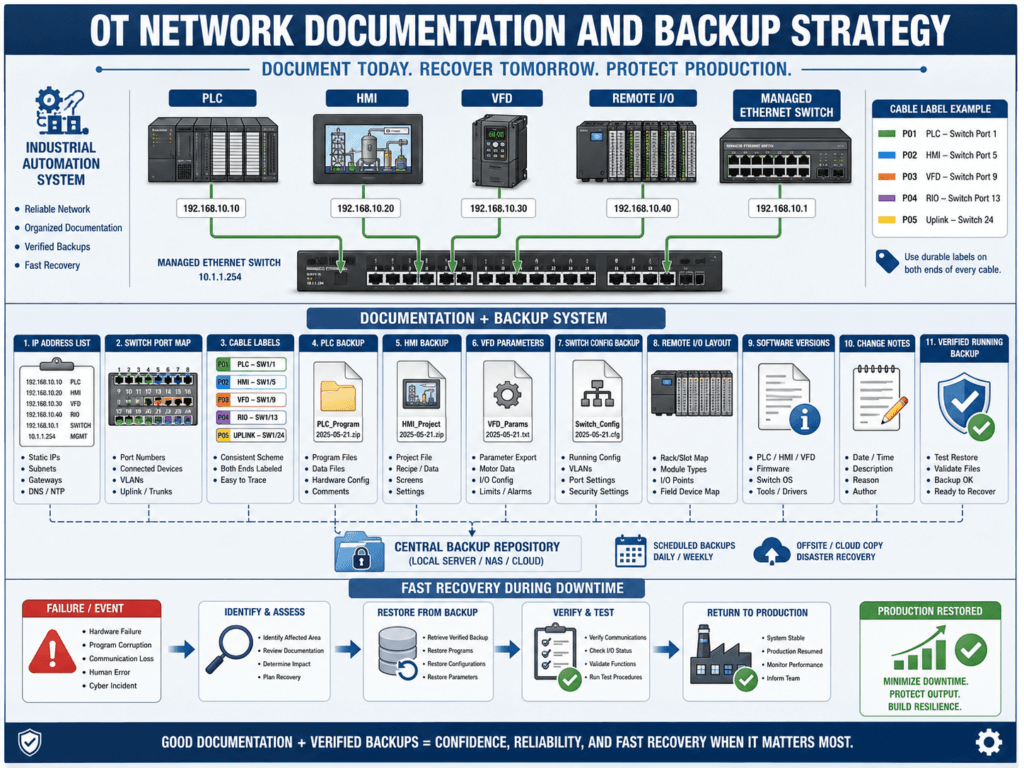
In industrial automation, troubleshooting is not only about knowing PLCs, HMIs, VFDs, sensors, motors, and networks.
A strong technician also needs something very practical:
Documentation
Backups
Labels
IP address lists
Device records
Configuration files
When production is down, missing documentation can turn a simple problem into hours of downtime.
A cable is unplugged, but nobody knows where it goes.
A VFD is replaced, but nobody has the parameters.
A PanelView fails, but nobody has the runtime file.
A managed switch is replaced, but nobody has the VLAN configuration.
A PLC is offline, but nobody knows the IP address.
That is why documentation and backups are part of real industrial automation skill.
Good documentation turns troubleshooting from guessing into following a map.
1. Why Documentation Matters
Documentation helps technicians answer questions quickly during a failure.
Examples:
What IP address does this PLC use?
Which switch port is this HMI connected to?
What cable goes to this VFD?
Where is the latest PLC backup?
What firmware version does this controller use?
What parameters were in the failed drive?
Which remote I/O rack is faulted?
What device is connected to port 7?
Without documentation, you waste time searching.
With documentation, you isolate the problem faster.
2. What Should Be Documented?
A strong OT documentation system should include:
PLC information
HMI information
VFD information
Remote I/O information
Industrial switch information
IP address list
Panel location
Cable labels
Switch port map
Backup file locations
Firmware versions
Software versions
Network diagrams
Device replacement notes
The goal is not to create paperwork just for paperwork.
The goal is to create useful information that helps during troubleshooting.
3. IP Address List
An IP address list is one of the most important OT documents.
It should include:
Device name
Device type
IP address
Subnet mask
Gateway
MAC address if useful
Panel location
Switch name
Switch port
VLAN
Description
Example:
| Device | Type | IP Address | Subnet | Gateway | Switch / Port | Location |
|---|---|---|---|---|---|---|
| Filler PLC | CompactLogix | 192.168.10.10 | 255.255.255.0 | 192.168.10.1 | SW-FILLER-01 / Port 1 | Main Panel |
| Filler HMI | PanelView | 192.168.10.20 | 255.255.255.0 | 192.168.10.1 | SW-FILLER-01 / Port 2 | Operator Station |
| VFD-101 | PowerFlex | 192.168.10.30 | 255.255.255.0 | 192.168.10.1 | SW-FILLER-01 / Port 3 | MCC |
| Remote I/O | POINT I/O | 192.168.10.40 | 255.255.255.0 | 192.168.10.1 | SW-FILLER-01 / Port 4 | Remote Panel |
This prevents duplicate IP problems and helps technicians connect quickly.
4. Switch Port Map
A switch port map shows what is connected to each port.
Example:
| Switch | Port | Device | IP Address | VLAN | Cable Label |
|---|---|---|---|---|---|
| SW-FILLER-01 | 1 | Filler PLC | 192.168.10.10 | 10 | CBL-PLC-01 |
| SW-FILLER-01 | 2 | Filler HMI | 192.168.10.20 | 10 | CBL-HMI-01 |
| SW-FILLER-01 | 3 | VFD-101 | 192.168.10.30 | 10 | CBL-VFD101 |
| SW-FILLER-01 | 4 | Remote I/O | 192.168.10.40 | 10 | CBL-RIO-01 |
| SW-FILLER-01 | 8 | Uplink to Plant Network | N/A | Trunk | CBL-UPLINK-01 |
This is extremely useful when:
A device is offline
A cable is unplugged
A switch is replaced
A VLAN issue occurs
A technician needs to trace a connection
5. Cable Labels
Every industrial Ethernet cable should be labeled.
Good cable labels help identify:
Source device
Destination device
Switch port
Panel location
Cable number
Example cable label:
CBL-VFD101
SW-FILLER-01 P3 → VFD-101
Bad label:
Ethernet CableGood labels reduce confusion, especially when a panel has many similar blue Ethernet cables.
6. PLC Backups
PLC backups are critical.
A PLC backup should include:
PLC program
Controller configuration
I/O tree
Tags
Routines
AOIs
Comments
Descriptions
Firmware information
Network configuration
Good PLC backup naming example:
FillerPLC_2026-07-02_VerifiedRunning.ACDAvoid vague names like:
PLC Backup New
Final Final
Latest
Copy 2
A good backup name should tell you:
Equipment name
Date
Version or status
File type
7. HMI Backups
HMI backups are different from PLC backups.
An HMI backup may include:
Screens
Buttons
Alarm displays
Tag connections
Security users
Recipes
Communication shortcuts
Runtime file
Development file
For PanelView / FactoryTalk View ME systems, technicians may need to know the difference between:
MER runtime file
APA archive file
Development project
Runtime application
Important:
Having only the runtime file may not always be enough for easy editing. The development archive is also important when available.
Good HMI backup naming example:
FillerHMI_PanelView_2026-07-02_VerifiedRuntime.mer
FillerHMI_FTViewME_Archive_2026-07-02.apa
8. VFD Backups
VFD backups are essential because a replacement drive with wrong parameters can stop production.
A VFD backup should include:
Drive model
Firmware
IP address
Motor nameplate data
Start/stop source
Speed reference source
Acceleration time
Deceleration time
Min/max frequency
Fault settings
Communication settings
Datalinks if used
Parameter file
Good VFD backup naming example:
VFD101_PowerFlex525_2026-07-02_CCW_Backup.ccwslnor:
VFD101_PF525_Parameters_2026-07-02.pdfWhen replacing a VFD, verify:
Correct model
Correct voltage/current rating
Correct parameters
Correct IP address
Correct command source
Correct speed reference source
Correct motor data
Correct safety/enable wiring
9. Industrial Switch Backups
Managed switches need backups too.
A managed switch configuration may include:
IP address
VLAN configuration
Port assignments
Trunk ports
Ring topology settings
User accounts
SNMP settings
Port descriptions
Security settings
QoS settings
IGMP settings
If a managed switch fails and you install a replacement without the correct configuration, devices may have link lights but still fail communication.
Example issue:
PLC, HMI, and VFD are physically connected,
but HMI cannot communicate because the replacement switch has wrong VLAN settings.
Good switch backup naming example:
SW-FILLER-01_Config_2026-07-02_Verified.cfg10. Remote I/O Documentation
Remote I/O documentation should include:
Adapter IP address
Rack name
Module slot layout
Module part numbers
Terminal base part numbers
Field power groups
Input/output point descriptions
Analog channel configuration
PLC I/O tree reference
Panel location
Example:
| Slot | Module | Description |
|---|---|---|
| 0 | EtherNet/IP Adapter | RIO-FILLER-01 |
| 1 | Digital Input | Photoeyes / Prox Sensors |
| 2 | Digital Output | Solenoids |
| 3 | Analog Input | Pressure / Level |
| 4 | Digital Input | Motor Feedback |
This helps when replacing modules or diagnosing field power problems.
11. Backup Storage Strategy
Backups must be stored in a controlled and easy-to-find location.
A good backup system may include:
Main engineering laptop
Shared OT backup folder
Version-controlled folder
Plant server
External recovery drive
Cloud or corporate-approved backup system
The important part:
Technicians must know where the latest verified backup is stored.Avoid having critical backups only on one person’s laptop.
That creates risk.
12. “Verified Running” Backups
Not every backup is equal.
A file may be old, experimental, incomplete, or from a machine that was not running correctly.
That is why “verified running” backups are valuable.
A verified running backup means:
The equipment was running correctly when this backup was taken.
The file matches the actual field device.
The backup can be trusted for recovery.
Good naming:
FillerPLC_2026-07-02_VerifiedRunning.ACDThis is much better than:
FillerPLC_Latest.ACD13. When Should Backups Be Taken?
Backups should be taken:
Before making changes
After making approved changes
After replacing hardware
After restoring parameters
After commissioning
After troubleshooting major faults
After firmware upgrades
After confirmed production testing
Simple rule:
Before change, save what exists. After change, save what works.
14. Change Notes
Whenever a backup is created after a change, add notes.
Change notes should include:
Date
Technician or engineer name
Equipment
Reason for change
What was changed
Before/after values
Test performed
Production verification status
Example:
Date: 2026-07-02
Equipment: Filler Conveyor VFD-101
Change: Updated acceleration time from 2.0 sec to 3.5 sec
Reason: Reduce overcurrent fault during startup
Test: Ran conveyor in Auto for 30 minutes without fault
Backup: VFD101_PF525_2026-07-02_VerifiedRunning
This helps future technicians understand why something was changed.
15. Software Version Documentation
Automation systems depend on software versions.
Document:
Studio 5000 version
RSLogix 500 version
FactoryTalk View version
CCW version
DriveExecutive / DriveTools version
RSLinx / FactoryTalk Linx version
Firmware revision
HMI runtime version
SCADA gateway version
This matters because a technician may not be able to open, edit, or download a file without the correct software version.
16. Replacement Checklist
Before replacing PLC, HMI, VFD, Remote I/O, or switch hardware, verify:
Correct part number
Correct series/revision
Correct firmware
Correct IP address
Correct backup available
Correct configuration file
Correct wiring labels
Correct safety state
Correct software tool available
Recovery plan
Rollback plan
After replacement:
Restore configuration
Verify communication
Verify I/O status
Verify HMI status
Verify fault/alarm status
Test operation safely
Take new verified backup
Document the repair
17. Common Mistakes
Mistake 1 — No backup before changes
If the change fails, there is no easy rollback.
Mistake 2 — Backups with unclear names
Nobody knows which file is correct.
Mistake 3 — Only one person knows where files are
This creates downtime when that person is unavailable.
Mistake 4 — Replacing a switch without configuration
Managed switches are not always plug-and-play.
Mistake 5 — Replacing a VFD without parameters
The motor may not run correctly even if the drive powers on.
Mistake 6 — No cable labels
Troubleshooting becomes a guessing game.
18. Best Practices
Use these best practices:
Maintain an updated IP address list.
Maintain switch port maps.
Label cables clearly.
Backup PLC programs.
Backup HMI applications.
Backup VFD parameters.
Backup managed switch configurations.
Keep version notes.
Store backups in a shared approved location.
Use clear file names.
Take backups before and after changes.
Mark verified running backups.
Document changes.
Review documentation periodically.
19. Technician Checklist
When reviewing documentation and backups, ask:
Do we know the IP address of every device?
Do we know which switch port each device uses?
Are Ethernet cables labeled?
Are PLC backups current?
Are HMI backups current?
Are VFD parameters backed up?
Are managed switch configs backed up?
Are Remote I/O layouts documented?
Are software versions recorded?
Are backups stored in a shared location?
Are verified running backups identified?
Are changes documented?
Can another technician recover the system without guessing?
Final Thoughts
Documentation and backups are not extra work.
They are part of professional automation.
When something fails, the technician with good documentation has a map.
The technician without documentation has to guess.
Good OT documentation includes:
IP address lists
Switch port maps
Cable labels
PLC backups
HMI backups
VFD backups
Remote I/O layouts
Switch configurations
Software versions
Change notes
A good backup gets the machine running again. Good documentation helps you know which backup to use.
This is how automation technicians reduce downtime, recover faster, and build confidence in real industrial environments.