1. What Is an Industrial HMI?
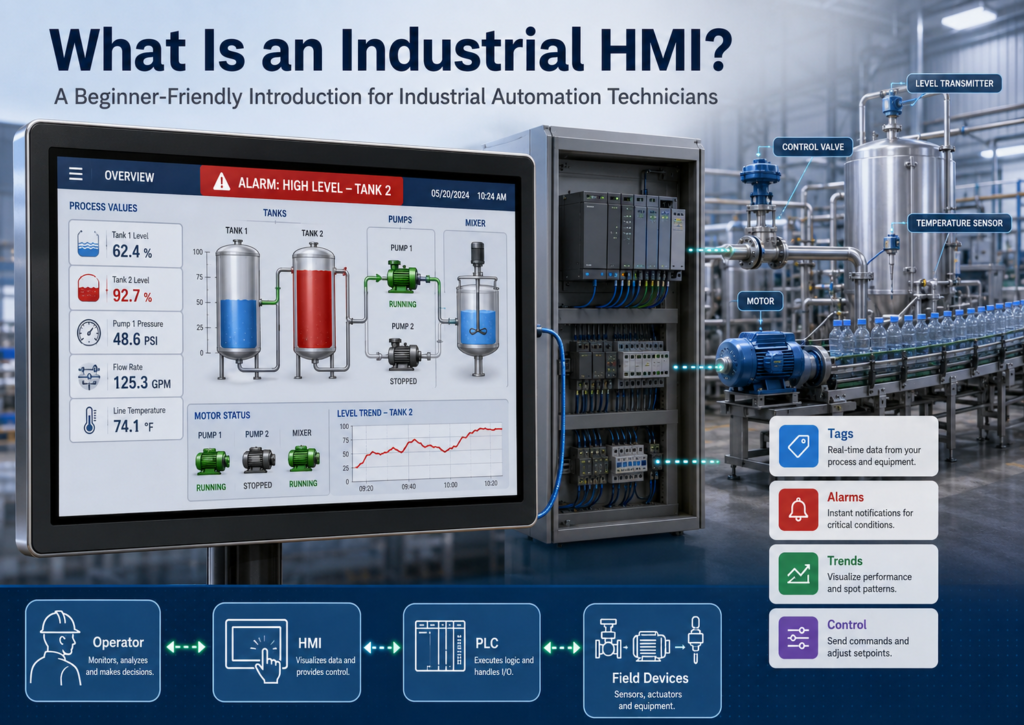
A Beginner-Friendly Introduction for Industrial Automation Technicians
In industrial automation, an HMI stands for Human-Machine Interface. It is the screen, panel, or computer-based application that allows an operator, technician, or engineer to interact with a machine or industrial process.
An HMI does not normally control the machine by itself. The actual control logic usually lives inside the PLC or controller. The HMI provides the visual and interactive layer between the human and the control system.
A simple way to understand it is:
Operator → HMI → PLC → Field DevicesThe operator uses the HMI to view machine status, press commands, acknowledge alarms, change setpoints, monitor trends, and understand what is happening in the process.
Modern Rockwell Automation systems commonly use FactoryTalk View Machine Edition for machine-level HMI applications. FactoryTalk View ME provides a dedicated operator interface solution for machine-level devices and includes tools for graphics, runtime user management, language switching, diagnostics, communication, and faster commissioning through a common development environment.
What Does an HMI Do?
An industrial HMI gives operators a controlled way to interact with equipment. Instead of looking directly at PLC logic, electrical wiring, field sensors, or raw controller tags, the operator sees a simplified process screen.
A typical HMI can show:
Motor Running / Stopped
Valve Open / Closed
Tank Level
Temperature
Pressure
Flow
Alarm Status
Machine Mode
Production Counts
Fault Messages
Trend Data
Operator Instructions
It can also allow the operator to perform actions such as:
Start a motor
Stop a pump
Open or close a valve
Reset a fault
Acknowledge an alarm
Change a setpoint
Select Auto or Manual mode
Navigate to another screen
Print a display
Log in or log out
In FactoryTalk View ME, graphic displays and graphic objects are used to build the operator interface. These objects can illustrate equipment, control the application, start and control processes, show values graphically, display trends, show alarms, and allow numeric or string data entry.
HMI vs PLC: What Is the Difference?
A common beginner mistake is thinking that the HMI and PLC do the same job. They do not.
The PLC is the controller. It executes the logic that turns outputs on and off based on inputs, timers, counters, interlocks, permissives, alarm conditions, and programmed sequences.
The HMI is the operator interface. It displays information from the PLC and sends operator requests back to the PLC.
| Device | Main Purpose |
|---|---|
| PLC / Controller | Executes the control logic |
| HMI | Displays information and sends operator commands |
| Sensors | Send field information to the PLC |
| Outputs | Motors, valves, lights, solenoids, and actuators controlled by the PLC |
| Data Server | Provides the communication path between the HMI and controller |
For example, when an operator presses a Start Pump button on the HMI, the HMI does not directly energize the motor starter. Instead, it usually writes a command bit or value to the PLC. The PLC then checks permissives, interlocks, safety status, faults, and machine conditions before turning on the output.
That is an important concept:
The HMI requests. The PLC decides.
Modern Rockwell HMI Example: FactoryTalk View ME
In modern Rockwell Automation environments, a common machine-level HMI platform is FactoryTalk View Machine Edition, usually called FactoryTalk View ME.
FactoryTalk View ME includes two very important parts:
| Component | Purpose |
|---|---|
| FactoryTalk View Studio | Development software used to create, configure, and test the HMI application |
| FactoryTalk View ME Station | Runtime environment used to run the HMI application on the machine |
FactoryTalk View Studio is used to develop the HMI application. FactoryTalk View ME Station runs the application on platforms such as PanelView Plus 7, PanelView Plus 6, MobileView terminals, Rockwell Automation industrial computers, or other industrial PCs.
A modern FactoryTalk View ME application is normally developed on a computer, then compiled into a runtime application file with the .mer extension. That .mer file is transferred to the runtime device, such as a PanelView Plus terminal, where the operator uses it on the plant floor.
Basic HMI Architecture
A basic modern HMI system has several layers.
Field Devices
Sensors, switches, transmitters, motors, valves

↓

PLC / Controller
Logic, interlocks, permissives, alarms, commands

↓

FactoryTalk Linx or OPC Data Server
Communication bridge between controller and HMI

↓

Data Server Tags / HMI Tags
Names and organizes process values

↓

Graphic Displays, Alarms, Trends, Diagnostics
Operator interface and troubleshooting tools

↓

FactoryTalk View ME Station / PanelView Plus
Runtime system used by the operator
FactoryTalk View ME uses data servers to provide access to devices on the network, allowing the HMI application to browse, read, and write values from controllers and other devices. For Rockwell Automation controllers and networks, FactoryTalk Linx is the recommended data server. For third-party devices, such as Siemens or Modicon controllers, KEPServer Enterprise can be used as an OPC data server.
What Are HMI Tags?
A tag is a logical name for a value used by the HMI. A tag can represent a process variable in a controller or a value stored in HMI memory. FactoryTalk View ME defines a tag as a logical name for a variable in a device or in local memory.
Examples:
Pump_101_StartCmd
Pump_101_RunningFB
Tank_201_Level_PV
Valve_305_OpenFB
Motor_02_Fault
System_AutoMode
Tags allow the HMI to display and interact with process values. Instead of building a screen with raw addresses everywhere, the HMI uses tag names that represent real machine information.
For example:
Pump_101_StartCmd   = Operator request from the HMI
Pump_101_RunningFB  = Feedback proving the pump is running
Pump_101_Fault      = Fault condition from PLC logic
Data Server Tags vs HMI Tags
Modern FactoryTalk View ME applications use two important tag concepts: data server tags and HMI tags.
Data Server Tags
Data server tags come directly from a controller or OPC data server. These are commonly used with modern Logix controllers because the HMI can directly reference controller tags.
Example:
[PLC_01]Pump_101.RunningFB
[PLC_01]Tank_201.Level_PV
[PLC_01]Valve_305.OpenFB
FactoryTalk View ME documentation notes that direct reference tags usually update faster than HMI tags. For best system performance, data server tags should be used where possible.
HMI Tags
HMI tags are created inside FactoryTalk View. They can reference an external device or store values inside HMI memory.
HMI tags are useful when you need:
Internal HMI memory
Scaling
Offset
Minimum and maximum write limits
Temporary values
Display logic
Values that do not exist directly in the PLC
FactoryTalk View ME allows HMI tags to use memory or a device as the data source. A memory tag stores values in the FactoryTalk View internal value table, while a device tag receives data from an external source such as a programmable controller or OPC server.
What Are HMI Screens?
HMI screens are the visual pages that operators use to monitor and control the process.
Common screen types include:
| Screen Type | Purpose |
|---|---|
| Overview Screen | Shows the main process or production area |
| Equipment Detail Screen | Shows one motor, valve, tank, or machine in detail |
| Alarm Screen | Shows active and historical alarms |
| Trend Screen | Shows process values over time |
| Maintenance Screen | Provides diagnostics for technicians |
| Manual Control Screen | Allows controlled manual operation |
| Login / Security Screen | Allows authorized users to access protected functions |
A good HMI screen should not only look nice. It should help the operator make the correct decision quickly.
A professional HMI should answer questions like:
What is running?
What is stopped?
What is faulted?
What mode is the machine in?
What alarm is active?
What does the operator need to do next?
FactoryTalk View ME recommends planning a display hierarchy before building screens. A display hierarchy gives users progressively more detail as they navigate through the system. The manual also recommends using templates to keep displays consistent.
Good HMI Design Matters
A good HMI should be easy to understand, consistent, and useful during real operation.
FactoryTalk View ME design guidance emphasizes:
Use consistent symbols and colors
Use consistent button labels and button placement
Use recognizable symbols
Avoid overloading the screen with too much information
Use clear terminology
Avoid confusing abbreviations
Do not rely on color alone to communicate meaning
Make touch buttons large enough for operators to press easily
Always provide a clear way to navigate between displays
The manual specifically notes that designers should not rely on color alone because some users may be color blind, and it recommends keeping button placement consistent to avoid operator confusion.
What Are HMI Alarms?
Alarms are one of the most important parts of an HMI system.
An alarm tells the operator that something needs attention. This could be a high temperature, low pressure, failed motor feedback, communication fault, overload, or unsafe condition.
FactoryTalk View ME defines an alarm as something that occurs when something goes wrong or is about to go wrong. Alarms can indicate that a device or process is outside acceptable limits, and they can also warn about approaching dangerous conditions.
A good alarm message should be clear and useful.
Poor alarm message:
Fault 101Better alarm message:
Pump 101 failed to start. Check motor starter feedback and overload.Important concept:
Acknowledge does not always mean reset.
Acknowledge usually means the operator has seen the alarm. Reset usually means the fault condition has been cleared and the system is ready to run again.
FactoryTalk View ME alarm tools allow operators to acknowledge alarms, silence alarms, clear or delete alarms, sort alarms, reset alarm status, and print alarm information depending on how the alarm objects are configured.
What Are HMI Trends?
A trend shows how a process value changes over time.
Trends are extremely useful for troubleshooting because they show what happened before, during, and after a problem.
Examples of values that can be trended:
Tank level
Motor speed
Pressure
Temperature
Flow
VFD frequency
Analog sensor values
Production rate
FactoryTalk View ME trends can be used to analyze process behavior, monitor production efficiency, and support process data collection. When planning trends, the designer should decide which tags need to be plotted together and which tags need to be logged using a data log model.
For technicians, trends can help answer questions like:
Did the pressure drop before the pump faulted?
Was the tank level rising too fast?
Did the temperature spike before the alarm?
Was the motor speed stable?
Did the valve position change before the flow dropped?
FactoryTalk Diagnostics: A Modern Troubleshooting Tool
Modern HMI systems are not only about screens, buttons, and alarms. They also include diagnostic tools.
FactoryTalk View ME includes FactoryTalk Diagnostics, which can show messages about system activity. Diagnostic messages can help identify problems such as communication issues, tag read/write activity, macros running, or problems opening displays.
This is important for technicians because an HMI problem is not always a graphic problem. It may be:
A bad communication path
A missing tag
A wrong device shortcut
A runtime path issue
A security restriction
A macro problem
A display navigation issue
Diagnostics help the technician move from guessing to structured troubleshooting.
Why HMI Security Matters
Not every user should have access to every function.
Operators may need access to start, stop, acknowledge alarms, and view trends. Maintenance technicians may need access to manual controls and diagnostics. Engineers may need access to configuration, setpoints, recipes, and advanced screens.
A good HMI system should protect critical actions such as:
Changing setpoints
Resetting faults
Forcing manual mode
Opening critical valves
Changing recipes
Accessing engineering screens
Writing values to PLC tags
Shutting down the application
FactoryTalk View ME supports FactoryTalk Security, runtime user accounts, user groups, security codes, login/logout behavior, automatic logout, and security assignment to graphic displays.
Security is not only an IT topic. In industrial automation, HMI security helps protect equipment, product quality, and personnel safety.
Runtime vs Development
Another important concept is the difference between development and runtime.
Development
Development is where the HMI application is created and tested.
In FactoryTalk View ME, this is done in FactoryTalk View Studio.
During development, the technician or engineer creates:
Graphic displays
Buttons
Tags
Alarms
Trends
Security
Recipes
Macros
Parameters
Navigation
Diagnostics displays
Runtime
Runtime is where the application is used by the operator on the machine.
In FactoryTalk View ME, the runtime environment is FactoryTalk View ME Station. The runtime application is normally a .mer file that runs on a PanelView Plus terminal, MobileView terminal, industrial computer, or Windows runtime computer.
This matters because an HMI can work correctly on the development laptop but fail on the actual PanelView if the runtime communication path is not configured correctly.
Legacy Foundation: Why RSView32 Still Helps
Older HMI systems such as RSView32 are no longer the modern standard, but they are still useful for learning the fundamentals.
RSView32 included many concepts that still exist in modern HMI platforms:
Graphic displays
Tags
Alarms
Trends
Data logging
Runtime operation
Security
OPC and DDE communication
Client/server architecture
The RSView32 documentation describes it as software for creating and running data acquisition, monitoring, and control applications, including real-time animated graphic displays, trends, alarm summaries, tags, logging, and security.
So, when learning HMI fundamentals, RSView32 can help explain the historical foundation, while FactoryTalk View ME shows how these concepts are applied in modern machine-level HMI systems.
Final Thoughts
An industrial HMI is the bridge between people and machines.
The PLC controls the process, but the HMI allows people to understand it, operate it, troubleshoot it, and respond to abnormal conditions.
A good HMI should be:
Clear
Reliable
Secure
Easy to navigate
Consistent
Useful for troubleshooting
Designed for the operator
Connected properly to the PLC
Modern platforms like FactoryTalk View ME build on the same core ideas used in older systems like RSView32, but add more modern tools such as FactoryTalk Linx, FactoryTalk Security, FactoryTalk Diagnostics, PanelView Plus support, runtime .mer files, language switching, and improved application management.
Understanding these fundamentals makes it easier to learn platforms like:
FactoryTalk View ME
FactoryTalk View SE
Ignition
WinCC
Wonderware / InTouch
iFIX
PanelView Plus
C-More
Technician Takeaway
The HMI is not just a pretty screen.

It is the operator’s window into the machine,
the technician’s troubleshooting tool,
and the plant’s interface to real-time process data.
For any automation technician, learning how an HMI works is a major step toward understanding complete industrial control systems.