14. Common VFD Faults and How to Troubleshoot Them (14 of 19)
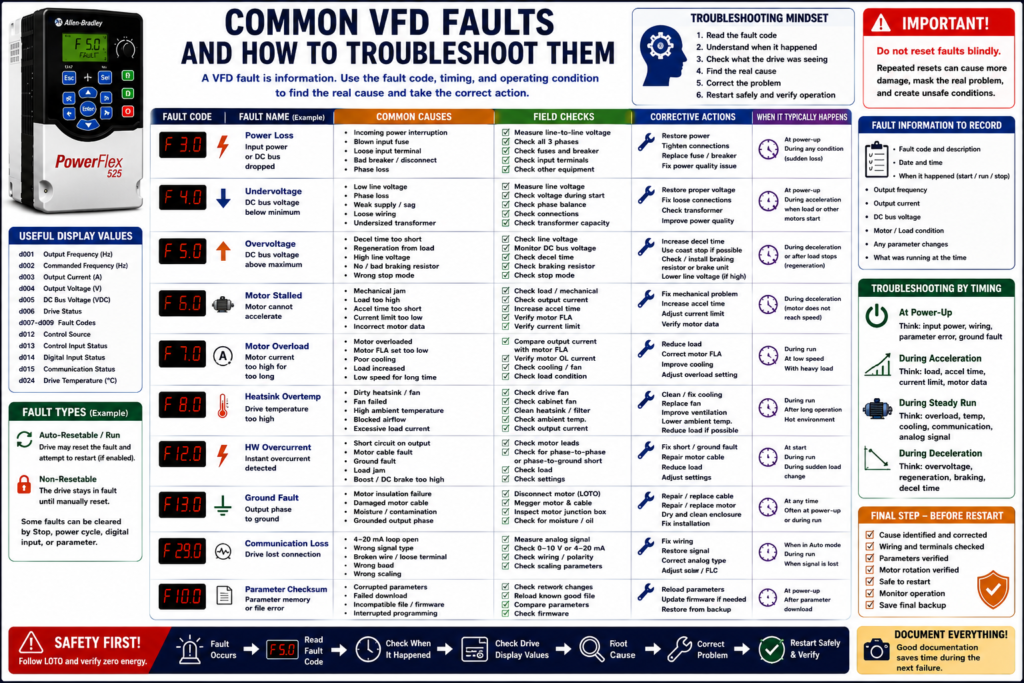
Introduction
A Variable Frequency Drive fault is not just an error message. It is valuable information that tells the technician something changed in the drive, motor, wiring, load, control system, or process.
A VFD fault may stop the motor to protect:
The drive
The motor
The wiring
The machine
The process
The operator
One of the biggest mistakes in the field is repeatedly pressing Reset without understanding why the fault happened. A good technician does not only clear the fault. A good technician finds the cause.
This post explains common VFD faults and how to troubleshoot them using a practical technician mindset.
The examples may reference Allen-Bradley PowerFlex fault names, but the same troubleshooting concepts apply to most industrial VFDs.
Why VFD Faults Matter
Most VFDs constantly monitor their internal condition. When something abnormal happens, the drive can stop and display a fault code on the keypad or HIM. The VFD training material notes that the drive condition is constantly monitored, and changes are indicated on the integral keypad. When a fault occurs, the keypad displays a flashing fault code and the fault indicator flashes.
A fault helps answer:
What stopped the drive?
When did it happen?
Was it during start, run, deceleration, or communication?
Is the problem electrical, mechanical, environmental, or configuration-related?
The PowerFlex manual also explains that a fault is a condition that stops the drive and separates faults into types such as Auto-Reset/Run and Non-Resetable faults. It warns that Auto Restart can reset certain faults and attempt to restart the drive, so caution is required.
1. The Correct VFD Troubleshooting Mindset
Before resetting the drive, ask:
[ ] What is the exact fault code?
[ ] What does the fault mean?
[ ] Did it happen during acceleration?
[ ] Did it happen while running steady?
[ ] Did it happen during deceleration?
[ ] Did it happen after a power event?
[ ] Did it happen after a parameter change?
[ ] Did it happen after a motor or drive replacement?
[ ] Is the machine mechanically loaded or jammed?
[ ] Is the fault repeatable?
A strong troubleshooting flow is:
Fault Code → Meaning → Operating Condition → Possible Cause → Field Check → Corrective Action → Safe RestartDo not start with guessing. Start with the fault information.
2. Useful Display Values to Check
When troubleshooting a VFD, display parameters are very helpful because they show what the drive is seeing.
Useful values include:
Output Frequency
Commanded Frequency
Output Current
Output Voltage
DC Bus Voltage
Drive Status
Fault Code
Control Source
Digital Input Status
Communication Status
Drive Temperature
On a PowerFlex-style drive, examples include:
d001 Output Frequency
d002 Commanded Frequency
d003 Output Current
d004 Output Voltage
d005 DC Bus Voltage
d006 Drive Status
d007–d009 Fault Codes
d012 Control Source
d013 Control Input Status
d014 Digital Input Status
d015 Communication Status
d024 Drive Temperature
The PowerFlex parameter list includes these Display Group values, which are useful for troubleshooting because they show real-time drive condition, command source, input status, output current, DC bus voltage, and fault codes.
3. Power Loss / Input Power Fault
A power loss fault usually points to an input power problem or DC bus problem.
PowerFlex-style example:
F3 Power LossPossible causes:
[ ] Incoming power interruption
[ ] Blown input fuse
[ ] Loose input terminal
[ ] Bad disconnect or breaker
[ ] Phase loss
[ ] Low line voltage
[ ] Transformer issue
[ ] Power quality problem
Field Checks
[ ] Measure incoming voltage line-to-line.
[ ] Check all input phases.
[ ] Check fuses.
[ ] Check disconnect and breaker.
[ ] Check for loose terminals.
[ ] Check line voltage under load.
[ ] Check if other equipment had power issues.
Technician Note
Do not only measure voltage with the drive stopped. Some power problems only appear when the motor starts or when the load increases.
4. Undervoltage Fault
An undervoltage fault means the DC bus or supply voltage fell too low.
PowerFlex-style example:
F4 UnderVoltageCommon causes:
[ ] Low incoming voltage
[ ] Line power interruption
[ ] Phase loss
[ ] Loose input wiring
[ ] Undersized transformer
[ ] Weak supply
[ ] Voltage sag during motor acceleration
The PowerFlex error code list identifies Undervoltage as error code 4, and the troubleshooting table describes undervoltage as a DC bus voltage condition below minimum value.
Field Checks
[ ] Measure input voltage.
[ ] Measure voltage during start.
[ ] Check phase balance.
[ ] Check input fuses.
[ ] Check power terminals.
[ ] Check transformer capacity.
[ ] Check if fault happens when other large equipment starts.
Common Field Scenario
The drive runs normally most of the time, but faults when another large motor starts nearby.Possible cause:
Line voltage sag causing DC bus undervoltage.5. Overvoltage Fault
An overvoltage fault means the DC bus voltage became too high.
PowerFlex-style example:
F5 OverVoltageCommon causes:
[ ] Incoming voltage too high
[ ] Line transients
[ ] Deceleration time too short
[ ] High-inertia load
[ ] Motor regeneration during stopping
[ ] Dynamic braking resistor missing or failed
[ ] Braking parameter not configured correctly
The PowerFlex error list identifies Overvoltage as error code 5. The troubleshooting table also explains that overvoltage can occur when DC bus voltage exceeds maximum value, and regeneration during deceleration can be one cause.
Field Checks
[ ] Check incoming AC line voltage.
[ ] Check if fault happens during deceleration.
[ ] Check decel time.
[ ] Check stop mode.
[ ] Check DC bus voltage while stopping.
[ ] Check braking resistor, if installed.
[ ] Check braking transistor/brake unit, if applicable.
[ ] Check for high-inertia load.
Common Field Scenario
A large fan runs normally, but trips on OverVoltage when stopping.Most likely direction:
The load is regenerating energy back into the DC bus during deceleration.Possible corrective actions:
[ ] Increase deceleration time.
[ ] Use coast stop if process allows.
[ ] Verify dynamic braking.
[ ] Check braking resistor sizing and wiring.
[ ] Verify stop mode.
6. Motor Stalled Fault
A motor stalled fault means the drive could not accelerate the motor as expected.
PowerFlex-style example:
F6 Motor StalledCommon causes:
[ ] Mechanical jam
[ ] Load too heavy
[ ] Accel time too short
[ ] Current limit too low
[ ] Incorrect motor data
[ ] Poor low-speed torque
[ ] Incorrect boost setting
[ ] Motor wiring issue
The PowerFlex error list identifies Motor Stalled as error code 6. The troubleshooting material also connects stalled motor conditions with acceleration problems and load/current limit issues.
Field Checks
[ ] Check if the load is mechanically free.
[ ] Check belts, chains, gearboxes, pumps, or mixers.
[ ] Check output current during acceleration.
[ ] Increase accel time if needed.
[ ] Verify motor FLA.
[ ] Verify current limit.
[ ] Verify motor voltage and frequency parameters.
[ ] Check for process overload.
Common Field Scenario
The drive faults when starting a loaded conveyor but starts fine when unloaded.Possible direction:
Load is too heavy, acceleration is too aggressive, or current limit is reached.7. Motor Overload Fault
A motor overload fault means the motor current/load exceeded the configured protection model for too long.
PowerFlex-style example:
F7 Motor OverloadCommon causes:
[ ] Motor overloaded
[ ] Motor FLA parameter set too low
[ ] Load increased
[ ] Mechanical friction
[ ] Poor motor cooling
[ ] Running too slowly for too long
[ ] Incorrect motor overload setting
[ ] Wrong motor nameplate data
The PowerFlex error list identifies Motor Overload as error code 7, and the Basic Program parameters include P033 Motor OL Current, which is critical for motor overload protection.
Field Checks
[ ] Compare output current to motor FLA.
[ ] Verify motor nameplate current.
[ ] Verify motor overload current parameter.
[ ] Check load mechanically.
[ ] Check motor cooling.
[ ] Check ambient temperature.
[ ] Check if motor runs at low speed for long periods.
[ ] Check for pump, fan, conveyor, or mixer overload.
Technician Note
If the motor overload current is set incorrectly, the drive may either trip too easily or fail to protect the motor properly.
8. Heatsink Overtemperature Fault
A heatsink overtemperature fault means the drive is overheating.
PowerFlex-style example:
F8 Heatsink OverTemperatureCommon causes:
[ ] Dirty heatsink
[ ] Failed cooling fan
[ ] Cabinet fan failed
[ ] Cabinet filter clogged
[ ] Ambient temperature too high
[ ] Drive mounted with poor clearance
[ ] Excessive load current
[ ] Panel ventilation problem
The PowerFlex error list identifies Heatsink Overtemperature as error code 8.
Field Checks
[ ] Check drive fan operation.
[ ] Check cabinet fan operation.
[ ] Clean heatsink.
[ ] Check filters.
[ ] Check cabinet temperature.
[ ] Check clearance around the drive.
[ ] Check output current.
[ ] Check for blocked airflow.
Common Field Scenario
The drive faults only during hot afternoons or long production runs.Possible direction:
Cooling, ambient temperature, ventilation, or load current issue.9. Hardware Overcurrent Fault
A hardware overcurrent fault means current exceeded the drive’s fast protection limit.
PowerFlex-style example:
F12 HW OverCurrentCommon causes:
[ ] Short circuit on output
[ ] Motor cable fault
[ ] Ground fault
[ ] Load jam
[ ] Accel time too short
[ ] DC brake level too high
[ ] Incorrect boost setting
[ ] Incorrect motor data
[ ] Drive output transistor issue
The PowerFlex error list identifies HW Overcurrent as error code 12.
Field Checks
[ ] Check motor leads.
[ ] Check motor insulation.
[ ] Check for phase-to-phase short.
[ ] Check for phase-to-ground short.
[ ] Check mechanical load.
[ ] Check accel time.
[ ] Check boost/DC brake settings.
[ ] Verify motor nameplate parameters.
Technician Warning
Do not repeatedly reset hardware overcurrent faults. If there is a shorted motor cable or motor winding, repeated resets can cause more damage.
10. Ground Fault
A ground fault means current is leaking or shorting to ground.
PowerFlex-style example:
F13 Ground FaultCommon causes:
[ ] Motor winding insulation failure
[ ] Damaged motor cable
[ ] Moisture in motor junction box
[ ] Water intrusion
[ ] Cable insulation damage
[ ] Grounded output phase
[ ] Incorrect wiring
The PowerFlex error list identifies Ground Fault as error code 13.
Field Checks
[ ] De-energize and follow LOTO.
[ ] Wait for DC bus discharge.
[ ] Disconnect motor leads according to site procedure.
[ ] Check motor cable insulation.
[ ] Check motor winding insulation.
[ ] Inspect motor junction box.
[ ] Look for moisture, oil, chemical damage, or crushed cable.
[ ] Check output terminals for damage.
Important
Never megger a motor while it is connected to the VFD. Follow the drive and motor manufacturer procedures before insulation testing.
11. Analog Input Loss Fault
Analog input loss happens when the drive expects an analog signal but the signal is missing or outside the valid range.
PowerFlex-style example:
F29 Analog Input LossCommon causes:
[ ] Broken 4–20 mA loop
[ ] Bad transmitter
[ ] Wrong analog input type
[ ] Loose wire
[ ] Wrong polarity
[ ] Analog common missing
[ ] PLC analog output failed
[ ] Signal configured incorrectly
The PowerFlex error list identifies Analog Input Loss as error code 29.
Field Checks
[ ] Measure analog signal.
[ ] Verify 0–10 V or 4–20 mA configuration.
[ ] Check analog input DIP switch, if used.
[ ] Check analog common.
[ ] Check polarity.
[ ] Check PLC analog output.
[ ] Check transmitter power.
[ ] Check scaling parameters.
[ ] Check for broken shield or noise.
Common Field Scenario
The drive runs in keypad mode but faults in Auto mode.Possible direction:
Auto mode expects analog speed reference or process feedback, but the signal is missing.12. Communication Loss Fault
Communication loss means the drive lost communication with the PLC, network adapter, HIM, or other communication device.
PowerFlex-style example:
F81 Communication LossCommon causes:
[ ] Network cable unplugged
[ ] Bad connector
[ ] Wrong IP address or node address
[ ] Wrong baud/data rate
[ ] Failed adapter
[ ] PLC not communicating
[ ] Switch/network issue
[ ] Noise or grounding problem
[ ] Communication timeout setting too short
The PowerFlex error list identifies Communication Loss as error code 81. The PowerFlex RS485/DSI parameters include communication data rate, node address, communication loss action, communication loss time, and communication format.
Field Checks
[ ] Check network cable.
[ ] Check adapter LEDs.
[ ] Check switch port.
[ ] Check IP/node address.
[ ] Check baud/data rate.
[ ] Check protocol settings.
[ ] Check PLC connection.
[ ] Check communication loss action.
[ ] Check grounding and cable routing.
Technician Note
Communication loss is not always a bad drive. It can be a cable, adapter, switch, PLC, address, or configuration issue.
13. Parameter Checksum / Parameter Error
A parameter-related fault usually points to corrupted, invalid, or incompatible parameter settings.
PowerFlex-style example:
F100 Parameter Checksum ErrorCommon causes:
[ ] Parameter memory issue
[ ] Failed download
[ ] Incompatible parameter file
[ ] Firmware mismatch
[ ] Interrupted programming
[ ] Internal drive issue
The PowerFlex error list identifies Parameter Checksum Error as error code 100.
Field Checks
[ ] Check if parameters were recently downloaded.
[ ] Verify correct parameter file.
[ ] Verify firmware compatibility.
[ ] Restore from known-good backup.
[ ] Compare against previous backup.
[ ] Check manual for required reset/reload procedure.
14. Auto Restart Fault / Restart Attempts
Some drives can automatically reset certain faults and attempt to restart.
PowerFlex-style example:
F33 Auto Restart TriesThe PowerFlex troubleshooting section explains that Auto Restart allows the drive to automatically perform a fault reset followed by a start attempt, but only certain faults are allowed to be reset. It also warns that caution should be used because the drive may issue its own start command based on user-selected programming.
Field Checks
[ ] Is auto restart enabled?
[ ] How many restart attempts are allowed?
[ ] What delay is configured?
[ ] Is the machine safe to restart automatically?
[ ] Is the PLC also trying to reset faults?
[ ] Does the HMI clearly show auto restart status?
Technician Warning
Auto restart can be useful in remote systems, but it can be dangerous if personnel expect the motor to remain stopped after a fault.
15. Troubleshooting by When the Fault Happens
The timing of the fault is very important.
Fault Happens at Power-Up
Think:
Input voltage
Phase loss
Incorrect wiring
Parameter error
Ground fault
Internal drive issue
Communication adapter issue
Fault Happens When Starting
Think:
Accel time too short
Load jammed
Motor data wrong
Current limit
Motor cable fault
Ground fault
Stop/input issue
Fault Happens During Normal Run
Think:
Overload
Overtemperature
Process load increase
Motor cooling
Communication loss
Analog signal loss
Loose wiring
Fault Happens During Deceleration
Think:
Overvoltage
Regeneration
Decel time too short
No braking resistor
Wrong stop mode
High-inertia load
This method is powerful because it connects the fault to the operating condition.
16. Fault Troubleshooting Table
| Fault | Common Meaning | First Checks |
|---|---|---|
| Power Loss | Input power or DC bus dropped | Fuses, voltage, disconnect, terminals |
| Undervoltage | DC bus too low | Line voltage, phase loss, sag |
| Overvoltage | DC bus too high | Decel time, regeneration, braking |
| Motor Stalled | Motor cannot accelerate | Load, accel time, current limit |
| Motor Overload | Motor current/load too high | FLA, load, cooling, overload setting |
| Overtemperature | Drive too hot | Fans, filters, heatsink, ambient |
| HW Overcurrent | Current exceeded fast limit | Motor cable, load, short, boost |
| Ground Fault | Output phase to ground | Motor insulation, cable, moisture |
| Analog Input Loss | Reference/feedback missing | 4–20 mA, 0–10 V, wiring, scaling |
| Communication Loss | Network/control link failed | Cable, adapter, IP/node, timeout |
17. Do Not Reset Blindly
A reset should come after diagnosis, not before it.
Before pressing reset:
[ ] Record the fault code.
[ ] Check when it happened.
[ ] Check current, frequency, DC bus, and drive status if available.
[ ] Inspect the machine/load.
[ ] Verify wiring and signals.
[ ] Correct the likely cause.
[ ] Restart safely.
The PowerFlex troubleshooting section describes manually clearing faults by acknowledging the fault, addressing the condition that caused it, and then clearing the fault through available methods such as Stop, power cycle, fault clear parameter, or a configured digital input.
18. Common VFD Troubleshooting Mistakes
Avoid these mistakes:
[ ] Resetting repeatedly without recording the fault code
[ ] Assuming every fault means the drive is bad
[ ] Ignoring when the fault occurred
[ ] Not checking motor/load mechanically
[ ] Not checking input voltage under load
[ ] Ignoring DC bus voltage during deceleration
[ ] Ignoring motor FLA and overload settings
[ ] Not checking analog signal type and scaling
[ ] Not checking communication settings
[ ] Replacing the drive without checking motor cable or ground fault
[ ] Not checking cabinet cooling
[ ] Not saving parameter backup before changes
19. Professional VFD Troubleshooting Checklist
Use this checklist when responding to a VFD fault:
[ ] Make the machine safe.
[ ] Record the exact fault code.
[ ] Record machine condition when the fault occurred.
[ ] Check if fault happened at start, run, stop, or decel.
[ ] Check drive display values.
[ ] Check input voltage.
[ ] Check output current.
[ ] Check DC bus voltage.
[ ] Check motor/load condition.
[ ] Check motor cable and grounding.
[ ] Check cooling and cabinet temperature.
[ ] Check control source and input status.
[ ] Check analog signals.
[ ] Check communication status.
[ ] Check recent parameter changes.
[ ] Correct the cause.
[ ] Reset safely.
[ ] Test operation.
[ ] Document findings.
Simple Technician Explanation
A simple way to explain VFD faults is:
A VFD fault tells you the drive stopped because it detected an unsafe or abnormal condition.
The fault code points you toward the area to investigate.
Or even shorter:
Do not just reset the fault.
Use the fault to find the cause.
Final Thoughts
VFD troubleshooting becomes much easier when you stop guessing and start following a process.
A good technician asks:
What is the fault code?
When did it happen?
What was the motor doing?
What was the load doing?
What did the drive see?
What changed recently?
Most VFD faults fall into a few major categories:
Input power problem
DC bus problem
Motor/load problem
Wiring or ground fault problem
Cooling problem
Analog or communication problem
Parameter/configuration problem
The best troubleshooting mindset is:
Read the fault.
Understand the condition.
Check the system.
Correct the cause.
Reset only when safe.
Document what happened.
That is what separates real troubleshooting from simply pressing reset.