12. Using DriveTools SP to Upload, Save, Compare, and Download VFD Parameters (12 of 19)
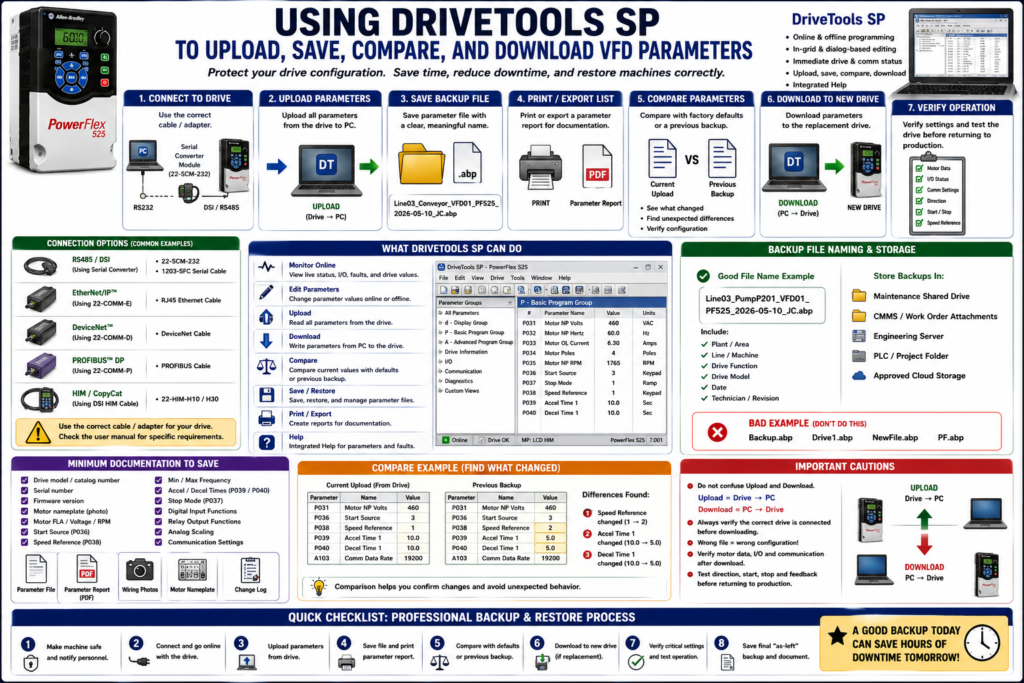
Introduction
When working with Variable Frequency Drives, one of the most important maintenance practices is saving a copy of the drive parameters before a failure happens.
A VFD is not only a piece of hardware. It also contains the configuration that makes the motor behave correctly for the machine.
Those parameters define:
Motor data
Start source
Speed reference
Minimum and maximum frequency
Acceleration and deceleration times
Stop mode
Digital input functions
Relay output functions
Analog input scaling
Communication settings
Fault reset behavior
Protection settings
If a VFD fails and there is no backup, the replacement drive may power up with factory defaults but not operate the machine correctly.
DriveTools SP is one of the software tools used with Allen-Bradley drives to monitor, configure, and document drive parameters. The examples in this post reference Allen-Bradley PowerFlex drives and DriveTools SP, but the same backup concept applies to any VFD brand using its own manufacturer software.
PowerFlex 400 documentation describes DriveTools SP as Windows-based software used for monitoring or configuring Allen-Bradley drives and communication adapters online and offline. The same documentation also notes that DriveExplorer can save, restore, print, compare, edit, upload, and download parameters.
1. What Is DriveTools SP?
DriveTools SP is a software package used to work with compatible Allen-Bradley drives and communication adapters.
It can help a technician or controls engineer:
Go online with a drive
View drive and communication status
Upload parameters from a drive
Save a parameter file
Edit parameters
Work online or offline
Compare parameter values
Download parameters to a drive
Document drive configuration
PowerFlex documentation states that DriveTools SP provides online and offline programming capability, in-grid and dialog-based parameter editing, immediate visual indication of drive and communication status when online, and integrated help.
2. Why Use Software Instead of Only the HIM?
A HIM is excellent for local troubleshooting, but software is better for documentation and long-term maintenance.
HIM / Keypad
Good for:
Quick field checks
Viewing basic parameters
Fault review
Local control
CopyCat transfer, if supported
Limitations:
Small display
Easy to miss parameters
Less convenient for documentation
Compatibility depends on HIM/drive
Not ideal for comparing many values
DriveTools SP / Software Backup
Good for:
Full parameter upload
Saving files
Printing reports
Comparing backups
Offline review
Documenting changes
Restoring a replacement drive
PowerFlex documentation explains that programming can be simplified by using a serial converter module with DriveExplorer or DriveTools SP software. It also notes that integral RS485 communication can be used for programming from a PC and in multidrop network configurations.
3. Typical Connection Methods
The connection method depends on the drive family, communication adapter, and available hardware.
Common connection methods may include:
Serial converter
RS485 / DSI
EtherNet/IP adapter
DeviceNet adapter
PROFIBUS adapter
USB-to-serial adapter, depending on hardware
Vendor-specific communication cable
PowerFlex 400 documentation lists a Serial Converter Module RS485 to RS232 for use with DriveExplorer and DriveExecutive software. It also lists accessories such as serial cables, DSI cables, splitter cables, terminating resistors, and communication adapters including DeviceNet, EtherNet/IP, and PROFIBUS DP.
Technician Note
Before connecting your PC:
[ ] Verify the correct software for the drive family.
[ ] Verify the correct communication cable or adapter.
[ ] Verify the drive is compatible with the tool.
[ ] Verify the machine is in a safe state.
[ ] Follow plant electrical safety procedures.
[ ] Avoid touching live terminals.
[ ] Confirm whether the drive is in Local or Remote.
Software access does not remove the need for safety awareness.
4. Before You Upload: Safety and Preparation
Before connecting to a VFD, treat the drive as energized equipment unless it has been properly isolated and verified.
The PowerFlex manual states that only qualified personnel familiar with adjustable frequency AC drives and associated machinery should perform installation, start-up, and maintenance. It also warns that VFDs contain high-voltage capacitors that require discharge time after removing mains supply.
Before uploading parameters:
[ ] Make sure the machine is safe.
[ ] Inform affected personnel if needed.
[ ] Verify whether the drive is running or stopped.
[ ] Confirm the correct drive asset.
[ ] Identify the motor and machine controlled by this drive.
[ ] Take photos of the drive nameplate and motor nameplate.
[ ] Record current fault information if applicable.
[ ] Confirm communication method and cable.
[ ] Open the correct software project or create a new one.
5. Uploading Parameters from the Drive
An upload means transferring the current parameter values from the VFD into the software.
Simple concept:
Drive → PC SoftwareThis is usually the first step when creating a backup.
Typical Upload Workflow
1. Connect the PC to the drive.
2. Open DriveTools SP.
3. Select the correct communication path.
4. Go online with the drive.
5. Verify the drive model and catalog number.
6. Upload all parameters from the drive.
7. Review online status for communication health.
8. Save the uploaded parameter file.
Important Upload Warning
Do not confuse upload and download.
Upload = from drive to PC.
Download = from PC to drive.
This is critical. Downloading the wrong file into a running or production drive can change machine behavior.
6. Saving the Parameter File
After uploading, save the file using a clear naming convention.
Bad file names:
Drive1
Backup
NewDrive
PF
Better file names:
Line03_MainConveyor_VFD01_PF525_2026-05-10
CIP_PumpP201_PowerFlex400_2026-05-10_JC
TankAgitator10PS001_VFD_Backup_2026-05-10
Recommended file name details:
Plant or area
Line number
Machine name
Drive function
Drive model
Date
Technician initials or revision
A clear file name prevents confusion during downtime.
7. What to Document Along with the File
The software file is important, but it should not be the only documentation.
Save or document:
[ ] Drive manufacturer
[ ] Drive model / catalog number
[ ] Drive serial number
[ ] Firmware version, if available
[ ] Motor nameplate photo
[ ] Motor FLA
[ ] Motor voltage
[ ] Motor frequency
[ ] Motor RPM
[ ] Start source
[ ] Speed reference
[ ] Communication settings
[ ] Digital input functions
[ ] Relay output functions
[ ] Analog scaling
[ ] Fault history
[ ] Wiring photos
The VFD lab material repeatedly instructs the technician to test operation and record all parameters, which reinforces that parameter documentation is part of proper VFD work.
8. Printing or Exporting Parameters
When possible, print or export the parameter list.
A printed or PDF parameter list is useful because:
[ ] It can be reviewed without software.
[ ] It helps during troubleshooting.
[ ] It can be attached to a work order.
[ ] It can be stored with machine documentation.
[ ] It helps compare old and new values manually.
[ ] It provides a backup if the software file cannot be opened later.
PowerFlex documentation specifically states that DriveExplorer can save, restore, and print parameter information.
Even if you use DriveTools SP, the professional habit is the same: keep the parameter file and a readable parameter record.
9. Comparing Parameters
One of the most valuable functions of drive software is comparing parameter sets.
A comparison can help answer:
What changed?
Is this drive still at factory defaults?
Does the replacement match the old drive?
Did someone change a parameter during troubleshooting?
Are communication settings different?
Are motor data values different?
PowerFlex documentation notes that DriveExplorer can compare current parameters with factory defaults or previously saved parameter values.
Useful Comparisons
| Comparison | Why It Helps |
|---|---|
| Current drive vs factory defaults | Shows what was changed for the application |
| Current drive vs previous backup | Finds undocumented changes |
| Replacement drive vs old drive backup | Confirms restore accuracy |
| Similar drive vs similar machine | Helps troubleshoot inconsistent behavior |
| Before change vs after change | Documents parameter modifications |
10. Downloading Parameters to a Drive
A download means transferring a saved parameter file from the PC into the drive.
Simple concept:
PC Software → DriveThis is normally done when configuring a replacement drive or restoring a known setup.
Typical Download Workflow
1. Verify the replacement drive is correct.
2. Verify voltage and current rating.
3. Verify drive family and firmware compatibility.
4. Open the correct saved parameter file.
5. Connect to the replacement drive.
6. Go online and confirm you are connected to the correct drive.
7. Download the parameter file.
8. Cycle power if required by the drive/manual.
9. Verify critical parameters.
10. Test operation safely.
Critical Warning
Never download a file just because the filename “looks right.”
Before downloading, confirm:
[ ] Correct machine
[ ] Correct drive
[ ] Correct motor
[ ] Correct voltage
[ ] Correct horsepower/current rating
[ ] Correct communication address
[ ] Correct backup revision
[ ] Correct date
[ ] Correct process area
A wrong download can create incorrect speed, wrong direction, wrong control source, incorrect overload protection, or unexpected operation.
11. Parameters to Verify After Download
After downloading, verify the most important parameters before starting the machine.
Motor Data
[ ] Motor rated voltage
[ ] Motor rated current / FLA
[ ] Motor rated frequency
[ ] Motor rated RPM
[ ] Motor overload protection
Control Setup
[ ] Start Source
[ ] Speed Reference
[ ] Local/Remote behavior
[ ] 2-wire or 3-wire control
[ ] Stop input / enable input
[ ] Reverse enable/disable
Speed and Motion
[ ] Minimum frequency
[ ] Maximum frequency
[ ] Acceleration time
[ ] Deceleration time
[ ] Stop mode
[ ] DC braking / dynamic braking settings
I/O and Feedback
[ ] Digital input assignments
[ ] Relay output assignments
[ ] Analog input type
[ ] Analog scaling
[ ] Analog output function
[ ] Fault reset input
Communication
[ ] IP address or node address
[ ] Baud/data rate
[ ] Protocol
[ ] Communication loss action
[ ] Communication timeout
[ ] Network adapter status
The PowerFlex RS485/DSI section lists parameters such as P036 [Start Source], P038 [Speed Reference], A103 [Comm Data Rate], A104 [Comm Node Addr], A105 [Comm Loss Action], A106 [Comm Loss Time], and A107 [Comm Format] as network-related configuration items.
12. Local Test After Download
After a restore, test carefully.
Recommended test sequence:
1. Confirm the machine is mechanically safe.
2. Verify all guards and safety circuits are in place.
3. Verify the motor can safely rotate.
4. Test local/HIM operation only if allowed.
5. Run at low speed.
6. Verify direction of rotation.
7. Verify output frequency.
8. Verify output current.
9. Test stop behavior.
10. Test remote/PLC command.
11. Verify HMI feedback.
12. Verify fault reset behavior.
13. Save the final confirmed backup.
Do not skip direction verification. On many machines, reverse rotation can damage equipment or create a process hazard.
13. Example Field Scenario: Replacing a Failed VFD
Situation
A conveyor VFD failed, but the old drive still powers up enough to communicate.
Good Technician Workflow
1. Make the machine safe.
2. Connect PC to old drive.
3. Upload parameters using DriveTools SP.
4. Save the file with clear asset name.
5. Export or print parameter list.
6. Take photos of wiring and nameplates.
7. Replace the drive.
8. Connect PC to new drive.
9. Download the saved parameter file.
10. Verify motor data, I/O, and communication.
11. Jog or run at low speed.
12. Verify rotation and feedback.
13. Test in Auto mode.
14. Save final “as-left” backup.
Bad Workflow
1. Replace drive.
2. Power up with factory defaults.
3. Try random parameters.
4. Guess start source.
5. Guess speed reference.
6. Call it “bad drive” when it does not run.
A structured backup/restore process saves time and prevents avoidable mistakes.
14. Common Mistakes with Drive Software
Avoid these mistakes:
[ ] Confusing upload and download.
[ ] Downloading the wrong file to the wrong drive.
[ ] Saving backups with unclear names.
[ ] Not verifying drive compatibility.
[ ] Not checking motor nameplate data after download.
[ ] Forgetting communication settings.
[ ] Not documenting digital input assignments.
[ ] Not checking relay output functions.
[ ] Not testing direction of rotation.
[ ] Not saving a final backup after field changes.
[ ] Keeping the only backup on one laptop.
[ ] Assuming factory defaults are close enough.
15. Backup Storage Best Practices
A good backup system should be easy to find during downtime.
Recommended storage locations:
Maintenance shared drive
Engineering server
CMMS work order attachment
Machine documentation folder
PLC project folder
Approved cloud storage
Asset management system
Recommended folder structure:
Automation_Backups
 └── Line_03
     └── Conveyor_System
         └── VFD_01_Main_Conveyor
             ├── Parameter_File
             ├── PDF_Parameter_Report
             ├── Wiring_Photos
             ├── Motor_Nameplate
             └── Change_Log
16. Change Log Example
Keep a simple change log.
Date: 2026-05-10
Asset: Line 03 Main Conveyor VFD
Drive: PowerFlex
Action: Uploaded existing parameters before replacement
Changed: No parameter changes
Verified: Motor rotation, remote start, HMI running feedback
Technician: JC
Notes: Final backup saved after testing
A change log helps the next technician understand what happened.
17. Technician Checklist: Upload, Save, Compare, Download
Before Upload
[ ] Machine is safe.
[ ] Correct drive identified.
[ ] Correct software opened.
[ ] Correct cable/adapter connected.
[ ] Communication established.
[ ] Drive model verified.
Upload and Save
[ ] Parameters uploaded from drive.
[ ] File saved with clear name.
[ ] Parameter report printed/exported.
[ ] Motor nameplate documented.
[ ] Wiring photos saved.
[ ] Fault history reviewed.
Compare
[ ] Compared with previous backup, if available.
[ ] Compared with factory defaults, if needed.
[ ] Differences reviewed.
[ ] Unexpected changes investigated.
Download
[ ] Correct replacement drive verified.
[ ] Correct parameter file selected.
[ ] Parameters downloaded to drive.
[ ] Critical values verified after download.
[ ] Power cycle performed if required.
Final Test
[ ] Direction verified.
[ ] Local mode tested safely, if allowed.
[ ] Remote/Auto mode tested.
[ ] HMI feedback verified.
[ ] Fault reset verified.
[ ] Final “as-left” backup saved.
Simple Technician Explanation
A simple way to explain DriveTools SP backup workflow is:
Upload from the old drive,
save and document the file,
compare if needed,
download to the replacement drive,
then verify operation before returning the machine to production.
Or even shorter:
Upload → Save → Compare → Download → VerifyFinal Thoughts
DriveTools SP is valuable because it turns VFD parameter work into a documented process instead of guesswork.
A good technician does not only replace the drive. A good technician protects the machine configuration.
Before changing or replacing a VFD, ask:
Do we have a current backup?
Can I upload from the existing drive?
Do we know the correct motor data?
Can we compare against a previous file?
Are the I/O and communication settings documented?
After download, did we verify operation?
The strongest VFD replacement habit is:
Back up before failure.
Save before changing.
Compare before guessing.
Download carefully.
Verify before production.
That discipline reduces downtime, prevents configuration mistakes, and makes VFD maintenance much more professional.