11. VFD Backup Methods: HIM CopyCat, Software Upload, and Parameter Documentation (11 of 19)
Introduction
A Variable Frequency Drive is not only an electronic motor controller. It is also a programmed device that contains application-specific settings.
When a VFD fails, replacing the hardware is only part of the job. The replacement drive must also be configured with the correct parameters for the motor, control wiring, speed reference, acceleration, deceleration, communication, feedback, and protection.
A new VFD with factory default parameters may power up, but it may not run the machine correctly.
Incorrect or missing parameters can cause:
[ ] Motor will not start
[ ] Motor runs at the wrong speed
[ ] Drive ignores PLC commands
[ ] HMI feedback does not match the real status
[ ] Motor overload protection is incorrect
[ ] Analog speed reference does not work
[ ] Communication fails
[ ] Direction is wrong
[ ] Accel/decel behavior changes
[ ] Fault reset behavior changes
[ ] Production downtime increases
This is why every automation technician should understand VFD backup methods.
The examples in this post use Allen-Bradley PowerFlex drives, HIM CopyCat, DriveTools SP, and DriveExplorer as practical references, but the same concept applies to most industrial VFD brands.
1. Why VFD Backups Matter
A VFD backup protects the machine configuration.
The VFD parameters define:
Motor data
Start source
Speed reference
Minimum and maximum speed
Acceleration and deceleration times
Stop mode
Digital input functions
Relay output functions
Analog input scaling
Communication settings
Fault reset behavior
PID settings
Protection settings
If these settings are lost, the replacement drive may not behave like the original one.
PowerFlex documentation shows that parameters are grouped by function, including Display, Basic Program, and Advanced Program groups. It also explains that parameters are identified by number and name, such as P031 [Motor NP Volts], which makes parameter documentation important during setup and troubleshooting.
2. The Three Main Backup Methods
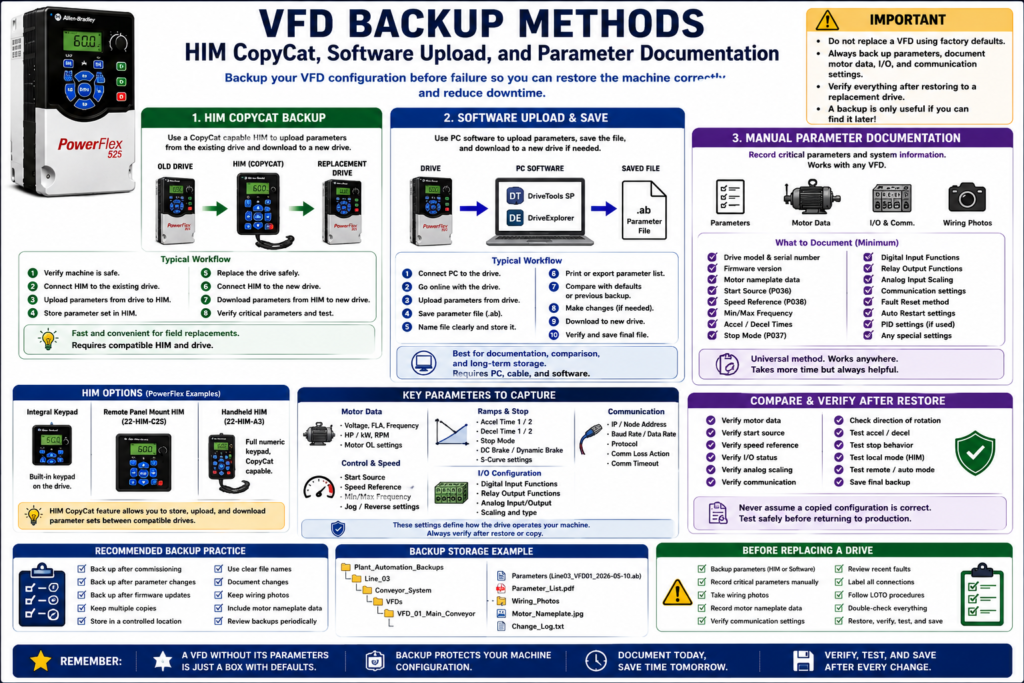
There are three practical ways to protect a VFD configuration:
1. HIM CopyCat backup
2. Software upload / save
3. Manual parameter documentation
Each method has advantages and limitations.
| Method | Best Use | Main Advantage | Main Limitation |
|---|---|---|---|
| HIM CopyCat | Quick field replacement | Fast and convenient | Requires compatible HIM and drive |
| Software Upload | Professional backup/documentation | Save, compare, print, restore | Requires PC, cable, software |
| Manual Documentation | Universal method | Works with any VFD | Slower and easier to make mistakes |
A good maintenance program may use more than one method.
3. Method 1: HIM CopyCat Backup
Some Human Interface Modules support a parameter copy function commonly called CopyCat.
CopyCat allows a technician to copy parameters from one drive into the HIM and then download them to another compatible drive.
Basic concept:
Old Drive → Upload to HIM → Store Parameter Set → Download to Replacement DrivePowerFlex documentation lists remote HIM options that are CopyCat capable, including remote panel-mount and handheld HIM options with LCD display and digital speed control.
When HIM CopyCat Is Useful
HIM CopyCat is useful when:
[ ] The old drive still powers up.
[ ] The HIM supports CopyCat.
[ ] The replacement drive is compatible.
[ ] A laptop is not available.
[ ] The technician needs a quick field transfer.
[ ] The machine must be restored quickly.
This method can be very helpful during a line-down situation.
Typical HIM CopyCat Workflow
Exact steps depend on the HIM and drive model, but the workflow is generally:
1. Verify the machine is safe.
2. Connect the HIM to the existing drive.
3. Navigate to the CopyCat or memory function.
4. Upload parameters from the drive to the HIM.
5. Label or identify the stored parameter set.
6. Power down and replace the drive safely.
7. Connect the HIM to the replacement drive.
8. Download parameters from the HIM to the replacement drive.
9. Verify critical parameters.
10. Test local operation.
11. Test remote/auto operation.
12. Save final documentation.
Important CopyCat Warning
CopyCat should not be treated as a blind copy-and-go method.
Always verify:
[ ] Drive family compatibility
[ ] Firmware compatibility
[ ] Voltage rating
[ ] Output current rating
[ ] Motor nameplate data
[ ] Start source
[ ] Speed reference
[ ] Digital input functions
[ ] Relay output functions
[ ] Analog input scaling
[ ] Communication settings
[ ] Direction of rotation
[ ] Stop mode
[ ] Accel/decel settings
A copied configuration still needs validation before returning equipment to production.
4. Method 2: Software Upload and Save
The most professional backup method is usually a software upload.
For Allen-Bradley drives, examples include:
DriveTools SP
DriveExplorer
DriveExecutive
Connected Components Workbench, for many newer PowerFlex drives
Other manufacturers have their own software tools.
Examples:
| Manufacturer | Typical Software Tool |
|---|---|
| Allen-Bradley | DriveTools SP, DriveExplorer, CCW |
| ABB | Drive Composer |
| Siemens | Startdrive / TIA Portal |
| Yaskawa | DriveWizard |
| Schneider | SoMove |
| Danfoss | MCT 10 |
| Mitsubishi | FR Configurator |
The specific tool depends on drive family, firmware, communication method, and plant standard.
DriveTools SP and DriveExplorer
PowerFlex 400 documentation explains that programming can be simplified using a serial converter module with DriveExplorer or DriveTools SP. It states that DriveExplorer can save, restore, print, compare, edit, upload, and download parameter information, while DriveTools SP supports online/offline programming, parameter editing, online status indication, and integrated help.
This makes software backup more powerful than simply writing down a few parameters.
Typical Software Backup Workflow
1. Connect the PC to the drive.
2. Open the correct drive software.
3. Go online with the drive.
4. Verify the correct drive is selected.
5. Upload parameters from the drive.
6. Save the parameter file with a clear name.
7. Print or export the parameter list if possible.
8. Compare against default or previous backup if needed.
9. Store the file in the correct maintenance location.
10. Document date, machine, drive, motor, and technician.
A good filename might look like:
Line03_ConveyorVFD_PowerFlex525_2026-05-10_BackupWhat to Include in the Backup File Name
Use a naming convention that makes sense later.
Recommended details:
Plant or area
Line number
Machine name
Drive function
Drive model
Date
Revision or technician initials
Example:
CIP_Area_PumpP201_PF525_2026-05-10_JCThis is much better than:
DriveBackup15. Method 3: Manual Parameter Documentation
Manual documentation is the backup method that works with every VFD.
Even if there is no HIM CopyCat and no software available, a technician can still record the critical parameters.
This method is slower, but it is extremely valuable.
The technician must test operation and record all the parameters, reinforcing that parameter documentation is part of proper VFD work.
Minimum Manual Parameter List
At minimum, document:
[ ] Drive manufacturer
[ ] Drive model / catalog number
[ ] Drive serial number
[ ] Firmware version, if available
[ ] Motor voltage
[ ] Motor FLA
[ ] Motor frequency
[ ] Motor RPM
[ ] Motor HP/kW
[ ] Start source
[ ] Speed reference
[ ] Minimum frequency
[ ] Maximum frequency
[ ] Acceleration time
[ ] Deceleration time
[ ] Stop mode
[ ] Digital input assignments
[ ] Relay output assignments
[ ] Analog input type and scaling
[ ] Communication address / IP / node
[ ] Fault reset method
[ ] Auto restart settings
[ ] PID settings, if used
6. Critical Parameters to Capture Before Replacement
Before replacing a VFD, capture these values from the old drive if possible.
Motor Data
Motor rated voltage
Motor rated current / FLA
Motor rated frequency
Motor rated RPM
Motor HP / kW
Motor overload class or protection settings
Command and Speed Control
Start Source
Speed Reference
Local/Remote mode configuration
Hand/Off/Auto behavior
2-wire or 3-wire control
Forward/reverse configuration
Ramps and Stop Behavior
Acceleration time
Deceleration time
Second accel/decel profile, if used
Stop mode
DC braking settings
Dynamic braking settings
S-curve settings
I/O Configuration
Digital input functions
Relay output functions
Analog input configuration
Analog output configuration
External fault input
Fault reset input
Preset speed inputs
Communication Settings
IP address
Node address
Baud rate / data rate
Protocol
Comm loss action
Comm timeout
Command word / status word mapping
Network adapter settings
PowerFlex documentation lists communication-related items such as data rate, node address, communication loss action, communication loss time, and communication format for RS485/DSI communication.
7. Take Pictures Before Touching Anything
Parameter backup is critical, but so is visual documentation.
Before disconnecting the old drive, take clear pictures of:
[ ] Drive nameplate
[ ] Motor nameplate
[ ] Terminal wiring
[ ] Control wiring
[ ] Communication adapter
[ ] HIM screen showing model or status
[ ] Parameter screens, if software is not available
[ ] DIP switches such as SNK/SRC
[ ] Network/IP labels
[ ] Panel wiring labels
Pictures are not a replacement for parameter backup, but they can save a lot of time during reinstallation.
8. Backup Before Changing Parameters
Do not wait until a drive fails to create a backup.
Create or update a backup when:
[ ] A new VFD is installed
[ ] A drive is commissioned
[ ] Parameters are changed
[ ] A motor is replaced
[ ] A control strategy changes
[ ] Communication settings change
[ ] A line improvement is completed
[ ] A firmware or adapter change is performed
Good rule:
If you change the drive configuration, update the backup.9. Compare Backups After Changes
One of the biggest advantages of software tools is the ability to compare parameter sets.
A comparison can show:
[ ] What changed from the last backup
[ ] What differs from factory defaults
[ ] Whether the replacement drive matches the old drive
[ ] Whether someone changed a parameter during troubleshooting
[ ] Whether a default reset occurred
PowerFlex documentation specifically notes that DriveExplorer can compare current parameters with factory defaults or previously saved parameter values.
This is very useful when troubleshooting unexplained changes in machine behavior.
10. Backup Storage Best Practices
A backup is only useful if technicians can find it.
Store backups in a controlled location such as:
Maintenance shared drive
Engineering server
CMMS attachment
Asset folder
PLC project folder
Machine documentation folder
Secure cloud storage approved by the company
Each backup should include:
Drive parameter file
PDF or printed parameter list
Motor nameplate data
Wiring photos
Network information
Change notes
Date and technician name
11. Recommended Folder Structure
Example:
Plant_Automation_Backups
 └── Line_03
     └── Conveyor_System
         └── VFDs
             ├── VFD_01_Main_Conveyor
             │   ├── Parameters
             │   ├── Photos
             │   ├── Motor_Nameplate
             │   └── Change_Log
             └── VFD_02_Discharge_Conveyor
                 ├── Parameters
                 ├── Photos
                 ├── Motor_Nameplate
                 └── Change_Log
This type of organization saves time during breakdowns.
12. What to Verify After Downloading a Backup
After downloading parameters to a replacement drive, do not immediately return the machine to production.
Verify:
[ ] Correct motor data
[ ] Correct drive voltage and current rating
[ ] Correct Start Source
[ ] Correct Speed Reference
[ ] Correct min/max frequency
[ ] Correct accel/decel times
[ ] Correct Stop Mode
[ ] Correct digital inputs
[ ] Correct relay outputs
[ ] Correct analog scaling
[ ] Correct communication settings
[ ] Correct direction of rotation
[ ] Correct local/remote behavior
[ ] Correct HMI feedback
[ ] Correct fault reset behavior
The PowerFlex troubleshooting guidance for a motor that does not start includes verifying control input signals, Start Source configuration, terminal status, and whether faults are present.
13. Local Test After Restore
After parameter restore, test safely.
Suggested sequence:
1. Verify wiring and grounding.
2. Verify motor can safely rotate.
3. Test local/HIM control if allowed.
4. Jog or run at low speed.
5. Verify direction.
6. Verify output frequency.
7. Verify output current.
8. Verify stop behavior.
9. Test remote/PLC command.
10. Verify HMI status feedback.
11. Verify fault reset method.
12. Document final result.
Do not skip direction check. A reversed motor may damage equipment depending on the application.
14. Common Backup Mistakes
Avoid these mistakes:
[ ] Waiting until the drive has completely failed before trying to back it up
[ ] Assuming factory defaults are close enough
[ ] Copying parameters without checking drive compatibility
[ ] Forgetting motor nameplate data
[ ] Forgetting communication settings
[ ] Not documenting digital input functions
[ ] Not documenting relay output functions
[ ] Not saving after parameter changes
[ ] Saving files with unclear names
[ ] Keeping backups only on one technician’s laptop
[ ] Not verifying operation after downloading parameters
[ ] Not taking pictures before removing wiring
15. Simple Technician Explanation
A simple way to explain this topic is:
The VFD hardware runs the motor, but the parameters make it run correctly for that machine.
A backup protects those parameters so the machine can be restored after a drive replacement.
Or even shorter:
A VFD without its parameters is just a box with factory defaults.16. Field Checklist: VFD Backup Before Replacement
Use this checklist before replacing a drive:
[ ] Machine is safe and LOTO procedures are followed.
[ ] Existing drive model and catalog number recorded.
[ ] Existing drive powers up, if possible.
[ ] HIM CopyCat upload completed, if supported.
[ ] Software upload completed, if available.
[ ] Manual critical parameters recorded.
[ ] Motor nameplate photo taken.
[ ] Drive wiring photos taken.
[ ] Communication settings recorded.
[ ] Digital input functions recorded.
[ ] Relay output functions recorded.
[ ] Analog scaling recorded.
[ ] Fault history reviewed.
[ ] Backup file saved with clear name.
[ ] Backup stored in approved location.
17. Field Checklist: After Downloading Parameters
Use this checklist after restoring a backup:
[ ] Correct parameter file downloaded.
[ ] Drive catalog compatibility verified.
[ ] Motor nameplate data verified.
[ ] Start Source verified.
[ ] Speed Reference verified.
[ ] Min/max frequency verified.
[ ] Accel/decel verified.
[ ] Stop Mode verified.
[ ] Digital inputs tested.
[ ] Relay outputs tested.
[ ] Analog input scaling tested.
[ ] Communication tested.
[ ] Direction of rotation verified.
[ ] Local/Remote mode tested.
[ ] HMI feedback verified.
[ ] Final backup saved after testing.
Final Thoughts
VFD backups are not optional in a professional maintenance program. They are part of keeping the process reliable.
A technician who replaces a VFD without a backup may spend extra time guessing parameters, tracing wiring, testing inputs, and trying to understand why the machine behaves differently.
A good technician asks:
Do we have a current backup?
Can I upload from the existing drive?
Can I use HIM CopyCat?
Can I save and compare the parameter file?
Do we have motor nameplate data?
Are the I/O and communication settings documented?
A strong VFD backup mindset is:
Backup before failure.
Document before removal.
Verify after download.
Save after changes.
That discipline reduces downtime, prevents mistakes, and makes VFD replacement much more professional.